Microsoft announced roll-up update 2 (RU2) for Exchange 2010 SP1 amongst the set of updates for different versions of Exchange that the CXP team released in December 2010. I believe that CXP means “customer experience”; in previous times this team might have been known as “ongoing support” or “maintenance engineering”. In any case, they’re the people who coordinate all of the support work done for released versions of Exchange and bring out the roll-up updates on a regular basis.
A roll-up update is not a service pack. Instead, it’s a consolidated set of known fixes that you can apply at one time to bring an Exchange server completely up-to-date. Each roll-up update includes all of the fixes from previous releases, which means that when you install RU2 for Exchange 2010 SP1 you gain the benefit of all of the fixes previously released in RU1.
Different roll-up updates are made available for all of the Exchange versions that are currently supported and the December set includes updates for Exchange 2010 SP1, Exchange 2010 RTM, Exchange 2007 SP3, and Exchange 2007 SP2. The next set of updates are due to be released sometime in February 2011 as Microsoft aims to provide ongoing updates to allow administrators to keep their servers in a clean state of health.
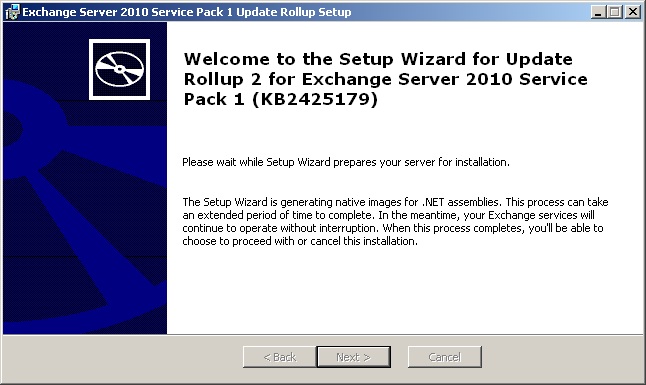
After starting up, the update process checks to see whether the “Check for publisher’s certificate revocation” security setting is active. If your server is disconnected from the Internet or otherwise cannot contact Microsoft, the update process will be unable to examine the certificate revocation list (CRL) to verify the code signing certificate each time it attempts to compile a .NET assembly into managed code and the update will have a problem any time it wants to check the CRL. The installation procedure checks for this condition and if found, it flags an error, as shown below.
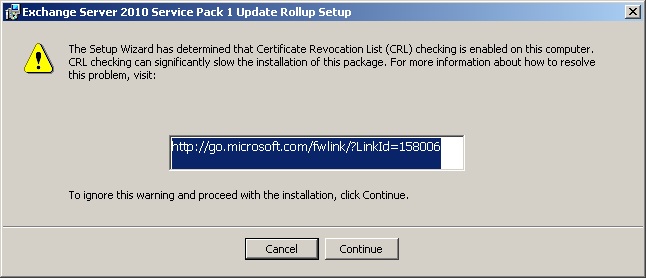
Exchange 2007 and Exchange 2010 both make extensive use of .NET assemblies and you can be guaranteed that quite a number of these will be updated. To fix the problem, follow the steps outlined in this TechNet article to disable checking of the CRL and allow the update to proceed smoothly. The article refers to Exchange 2007 but the same issue and same solution is valid for Exchange 2010.
Apart from that, the installation of a roll-up update for Exchange 2010 goes smoothly. The process will:
- Do some preparation such as performing the CRL check explained above.
- Stop the set of Exchange services running on the computer.
- Validate that everything is ready to allow files to be copied (for example, ask you to exit EMC if it is still running).
- Create the necessary managed code images from the .NET assemblies.
- Copy the changed files.
- Restart the Exchange services.
The longest part of the process is when the .NET assemblies are compiled. However, even on a virtual machine running on a laptop, this part of the RU2 installation only took a few moments and it will be much faster on a production-quality server.

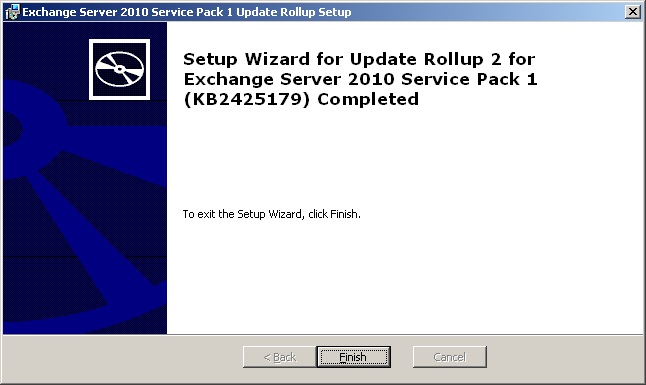
And once everything is done you’ll see a comforting message to tell you that it’s time for a coffee and a well-deserved rest:
Before you apply a roll-up update to a mailbox server operating within a Database Availability Group (DAG), you should transfer any active databases to other servers within the DAG before attempting the upgrade. You can also block activation of the database copies on the server that you want to upgrade until everything is done by running the Set-MailboxServer cmdlet to set the DatabaseCopyAutoActivationPolicy to “Blocked”. Afterwards you can run Set-MailboxServer again and reset the property to “Unrestricted” and then transfer the databases back onto the upgraded server.
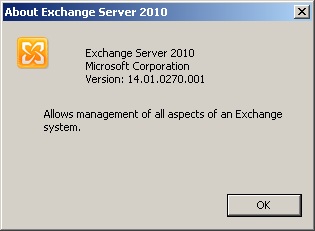
In a previous post, I describe how to extract the version number for Exchange. The interesting thing about the installation of RU2 is that the version number as reported by anything other than EMC does not change. All of the methods described in the post continue to report 218.15 as the version number after RU2 is applied to a server. This is logical because the data comes from the Exchange configuration data held in Active Directory and this isn’t updated when you install a roll-up update. By contrast, if you check the Help About information in EMC, the MMC framework (which is what EMC runs in) reports the version information from the file Microsoft.Exchange.Management.NativeResource.dll in the \BIN directory. This is why you see EMC report a version of 14.01.0270.001 after RU2 is installed (shown below) whereas EMC on a plain vanilla SP1 server reports 14.01.0218.013.
For those interested in trivia, it’s also worth noting that files updated by the installation of RU2 will have a creation date of November 19, 2010 compared to the August 22, 2010 date for files distributed with Exchange 2010 SP1.
In summary, the installation of a roll-up update doesn’t cause many brain cells to be destroyed for an Exchange administrator and is definitely one of the regular maintenance activities that you should schedule for your servers.
– Tony


 Thoughtsofanidlemind's Blog
Leave a comment