Ten years ago, Bill Gates told the World Economic Forum that the problem of spam would be solved within two years (by 2006). To be fair to Gates, he also noted that his predictions have not always been on the mark. I guess his views on the demise of spam fall into the “not accurate” because it still exists today. At least, I certainly receive my fair share of offers to join dubious projects to share money, buy different pills, or meet people that I really would prefer to avoid.
But if you’re an Office 365 user, you can help by letting Microsoft know about spam that manages to get through to your Inbox. The techniques used by spammers to defeat defenses evolve and morph all the time and the anti-spam developers have to run to keep pace with new threats. Sending Microsoft examples of spam helps the developers to figure out the characteristics of the message that allowed the spam to get past anti-spam checks. Here’s what you need to do.
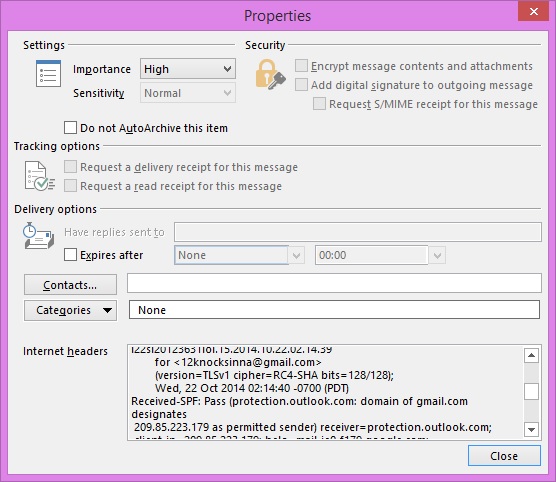
Microsoft has a junk mail reporting add-in for Outlook that you can install and use. If this isn’t possible, you can use the following steps to report a message with Outlook 2013:
- Open the spam message
- Click File to go to the “backstage” area.
- Click Properties to reveal the header information (see above)
- Copy the Internet headers (CTRL/C).
- Close the message.
- Create a new message to forward the spam data (including a copy of the original mesage) to Junk at Office365 dot Microsoft dot com. This address is monitored by Microsoft’s anti-spam team.
- Paste the details of the message header that reveal the path the message took to your Inbox into the message body and then send the message.
Other clients will have different methods to expose the message headers. The important point is to provide these details to Microsoft as they help to understand how the message was transferred from server to server from origin to final delivery. The information will look something like the extract shown below:
Received: from DBXPR04MB542.eurprd04.prod.outlook.com (10.141.12.27) by

DBXPR04MB544.eurprd04.prod.outlook.com (10.141.13.155) with Microsoft SMTP

Server (TLS) id 15.0.1054.13 via Mailbox Transport; Wed, 22 Oct 2014 09:14:43

+0000

Received: from AM3PR04CA0050.eurprd04.prod.outlook.com (10.242.16.50) by

DBXPR04MB542.eurprd04.prod.outlook.com (10.141.12.27) with Microsoft SMTP

Server (TLS) id 15.0.1054.13; Wed, 22 Oct 2014 09:14:42 +0000

Received: from DB3FFO11FD041.protection.gbl (2a01:111:f400:7e04::154) by

AM3PR04CA0050.outlook.office365.com (2a01:111:e400:8814::50) with Microsoft

SMTP Server (TLS) id 15.0.1054.13 via Frontend Transport; Wed, 22 Oct 2014

09:14:42 +0000

Received: from mail-ie0-f179.google.com (209.85.223.179) by

DB3FFO11FD041.mail.protection.outlook.com (10.47.217.72) with Microsoft SMTP

Server (TLS) id 15.0.1049.20 via Frontend Transport; Wed, 22 Oct 2014

09:14:41 +0000

Received: by mail-ie0-f179.google.com with SMTP id ar1so3021765iec.38
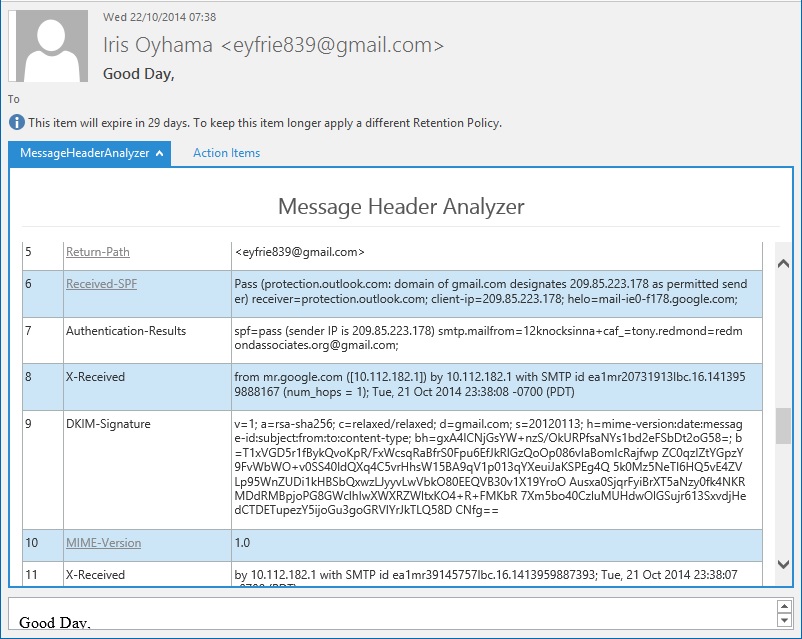
The MessageHeaderAnalyzer app (for Outlook 2013 and Outlook Web App) is also a useful way to view message header information. However, the easiest way to get the information needed by the anti-spam team is to extract it as explained above.
I doubt that spam will go away anytime soon. The only way to keep it under some form of control is to make sure that those who are responsible for blocking spam know about how it gets through. Helping them by reporting spam is a good way for you to contribute to the fight.
Follow Tony @12Knocksinna


 Thoughtsofanidlemind's Blog
Leave a comment