Creating a new address list for Exchange Online (Office 365)

Published by

on


A question was posed in the Exchange IT Pro group of Microsoft’s Office 365 Network:

Is there any way I can add folders to directory on Outlook for example add a folder “staff” for users to click it and all the staff come up. I have added a picture. Thanks 🙂 By the way I’m using Office 365 Exchange Online.”

The accompanying screen shot showed the People section of Outlook Web App (OWA) and all indications were that the request wanted a way to create a new “Staff” entry under the “Directory” tree on the left-hand side of the screen. By default, this tree includes entries for “All Rooms”, “All Users”, and so on.

My reply was that a new address list would serve the purpose, assuming that you could create a recipient filter to isolate the mail-enabled objects that you wanted to display when the list was accessed. However, a few differences exist in creating an address list for Exchange Online than for Exchange 2013 (documented in pages 345-349 in chapter 7 of “Microsoft Exchange 2013 Inside Out: Mailbox and High Availability”), so here’s a brief overview of what needs to be done.

First, like everything else in Exchange, RBAC controls access to the cmdlets that control the ability to work with address lists. As it happens, the “Address Lists” role is not assigned to any administrative role group, so the first task is to assign the role to a suitable role group. Follow these steps:

  1. Open the Exchange Administration Center (EAC) in Office 365
  2. Click “permissions”
  3. Click “admin roles”
  4. Select the role group that you want to amend. I chose “Organization Management” as it is the usual role group used by tenant administrators. Click on the pencil icon to edit the role group.
  5. Add the “Address Lists” role to the set of roles included in the group and save.
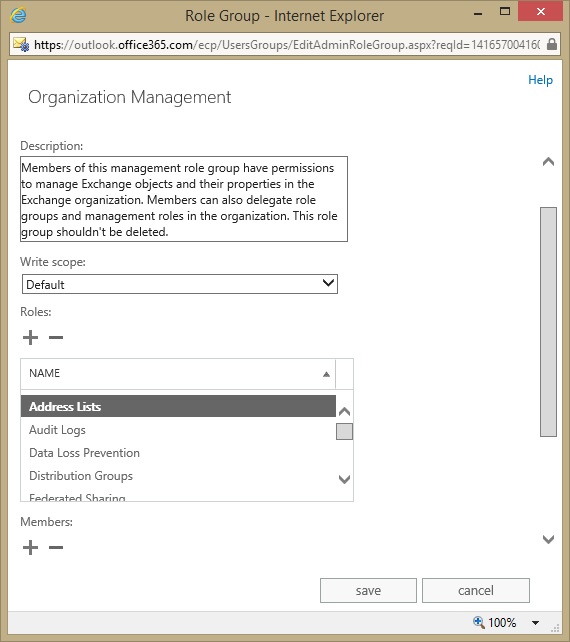
Adding the Address Lists role to Organization Management

The next step requires PowerShell because EAC does not include an option to allow you to create a new address list. Start PowerShell and connect to Office 365 (use these commands if you don’t already have them in your PowerShell profile). When you connect, RBAC will load all the cmdlets that you are allowed to run into the PowerShell session, including the Address Lists cmdlets.

Next, run the New-AddressList cmdlet to create the new list. You need to provide two pieces of data – the name of the address list as seen by users and the recipient filter used by Exchange to extract items from the directory for display in the list. The example shown below is a very simple filter that extracts user mailboxes whose “StateOrProvince” property is set to “Ireland.”

New-AddressList –Name ‘Ireland Users’ –RecipientFilter {((RecipientType –eq ‘UserMailbox’) –and (StateOrProvince –eq ‘Ireland’))}

Running the New-AddressList cmdlet

Normally, after a new address list is created with on-premises Exchange 2010 or Exchange 2013, you would run the Update-AddressList cmdlet to update the list. You don’t have to do this for Exchange Online (the cmdlet is not available to you), possibly because any update activity that could soak up a lot of system resources is handled behind the scenes.

In fact, there is a twist in how Exchange Online handles pre-existing recipients that should be included in custom address lists. Essentially, because Exchange Online does not make the Update-AddressList cmdlet available to administrators, any pre-existing recipient whose properties match the query for a new address list will not be evaluated for list membership. Evaluation only occurs when a recipient object is created or updated, so if you create a new address list and recipients already exist that should be in the list, you have to update those recipients to “force” Exchange Online to include them in the list. For more information, see Greg Taylor’s EHLO post on the topic.
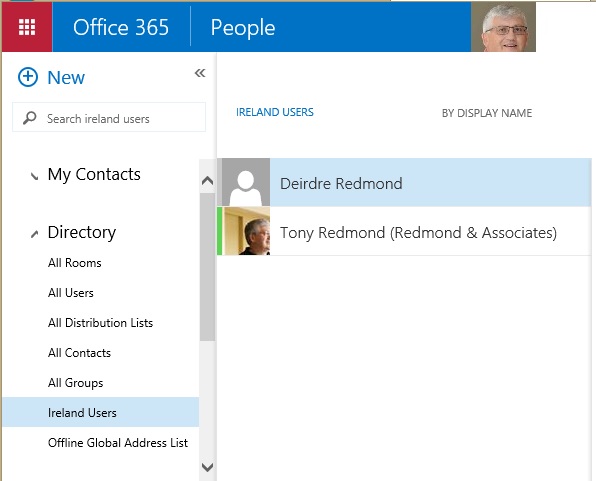
The new address list shows up in OWA

After a couple of minutes, you should be able to go to OWA, access People, and see the new address list under “Directory” – and better again, if the recipient filter works and the right information has been populated about the objects you want to display, you will see a populated list. The last point is important – address lists can only work if they can find objects according to the filter criteria you specify. If an object is missing some value then it won’t be found. For instance, if a user doesn’t have “Ireland” in their StateOrProvince” property, then they won’t appear in the “Ireland Users” view.

Follow Tony @12Knocksinna

18 responses to “Creating a new address list for Exchange Online (Office 365)”

  1. Joe Palarchio Avatar

    Unfortunately there is an issue with address lists in Exchange Online and it’s that you can’t create them after your objects are already populated with the attributes you want to use.

    “Update-AddressList” never seems to run and the only way to get the address list to populate is to “tickle” the objects that you want in scope (official Greg Taylor term: http://blogs.technet.com/b/exchange/archive/2013/02/14/address-book-policies-jamba-jokes-and-secret-agents.aspx).

    This KB references the same: http://support.microsoft.com/kb/2955640

    Manipulating objects every time you create an address list is a bit ridiculous; it would be nice to see this fixed. I asked for the addition of a “Tickle-Mailbox” cmdlet at MEC but for some reason no one took me seriously…

    1. Tony Redmond ("Thoughts of an Idle Mind") Avatar

      Yes, you’re right. This is a problem that needs to be addressed in Exchange Online. But I wonder if something has changed since MEC because I followed the procedure explained in the post and everything worked…

  2. Weekly IT Newsletter – November 17-21, 2014 | Just a Lync Guy Avatar

    […] Creating a new address list for Exchange Online (Office 365) – 21-Nov-2014 […]

  3. […] Creating a new address list for Exchange Online (Office 365) – 21-Nov-2014 […]

  4. Office 365 – How to Update Address Lists in Exchange Online | Microsoft Enterprise Technologies Avatar

    […] List; if you’ve found this article, you’ve probably already figured that out. If not, checkout Tony Redmond’s article for the process on creating an Address List and be sure to note the RBAC requirement. You should […]

  5. Sean Avatar
    Sean

    Hi Tony

    I do as you with the below PS and then tickle the users however no users ever populate.

    PS > New-AddressList -Name “Staff” -RecipientFilter {((RecipientType -eq ‘UserMailbox’) -and ((Company -eq “The Company”) -or (CustomAttribute14 -like “Staff”)))}

    When I look at the full details of the AL I see this in one of the lines. “RecipientFilterApplied : False” I have googled high and low but come up with nothing.

    1. Tony Redmond ("Thoughts of an Idle Mind") Avatar

      If you use the same filter with Get-Recipient, does it return users? The filter is key… if it works with Get-Recipient, it will work with an address list (which is what I say in Chapter 12 of the “Office 365 for IT Pros” ebook…)

      1. Sean Avatar
        Sean

        Thanks for the reply Tony.
        I figured it out. I was being silly.
        My users I was testing with had not yet been migrated to the cloud so O365 only regarded them as mail contacts.

  6. David Avatar
    David

    Great Article Tony! This helped me alot. Is it possible to create an office 365 Address list Inside another address list? Im trying to cleanup my address lists to make them a little more orginized

    1. Tony Redmond ("Thoughts of an Idle Mind") Avatar

      An address list is a standalone object. I don’t think you can include one inside another.

      1. David Avatar
        David

        Thanks for the reply, Thats what I was figuring too. What are your thoughts about creating a new GAL to house those Address Lists?

      2. Tony Redmond ("Thoughts of an Idle Mind") Avatar

        I generally wouldn’t create a new GAL unless I knew that a solid business reason existed that is unlikely to change over time.

      3. The Greg Avatar
        The Greg

        Looks Like you can Tony, I just created an empty List called Users by Division and I can shove Divisional Lists under it like Accounting Users, Marketing Users, Sales Users

  7. The Greg Avatar
    The Greg

    Great article from the Master. How about containers we like to put our custom address lists inside Containers here on prem to keep them organized more better, lol. Is there such an option in O365?

  8. […] Creating a new address list for Exchange Online (Office 365) […]

  9. […] Thoughtsofanidlemind’s Blog […]

  10. Amol Sanjayrao Kale Avatar
    Amol Sanjayrao Kale

    May I know which power shell module do I need to install to create a new GAL / Custom GAL.

  11. […] Creating a new address list for Exchange Online (Office 365) | Thoughtsofanidlemind’s Blogv […]

Leave a comment

This site uses Akismet to reduce spam. Learn how your comment data is processed.