The Mailbox Replication Service (MRS) is an essential component of any Exchange 2010 deployment as it controls the movement of mailboxes between databases. MRS runs on all Exchange 2010 Client Access Servers (CAS).
MRS gets involved in migrations from Exchange 2003 or 2007 to Exchange 2010 because moving mailboxes is the only practical way to get user data into mailboxes. You could export and then import mailbox data and this may be done in situations where no connection is available between Exchange 2010 and the legacy servers. Even so, MRS will be involved as Exchange 2010 SP1 introduces the New-MailboxImportRequest cmdlet to replace the Import-Mailbox cmdlet. MRS manages the work done by New-MailboxImportRequest, an example of how the influence of this service has spread within Exchange.
MRS is a “black box” service in that there’s no management utility provided in Exchange 2010 to control how it works or to tweak its performance. You can create, modify, view, and clear mailbox move requests through EMC but that marks the end of management interaction with data used by MRS. In fact, all you’re doing here is working with the Active Directory attributes for mailboxes that are being moved or the XML data that describe the move requests that Exchange stores in system mailboxes within databases. You’re not really doing much with MRS at all.
It’s likely that this situation exists by design because the view of the Exchange developers is probably that system administrators don’t have sufficient knowledge or data to allow them to make changes to a service that runs in the background and if they provide a management interface it’s possible that people will make mistakes that compromise Exchange’s ability to move mailboxes.
I think this is a reasonable stance to take – for now. MRS is new to Exchange and it will take time for administrators to become used to how it works. However, over time, you’d hope that a management interface will be added to EMC to allow administrators to control how MRS works and remove the black box label.
Behind the scenes, MRS operation on a CAS is controlled by an XML-format configuration file called MSExchangeMailboxReplicationService.exe.config that you’ll find in the \bin directory (for more information, see page 708 in chapter 12 of Microsoft Exchange Server 2010 Inside Out

MRS reads in its configuration file when the service starts. The two major areas of the file that we might be interested in are the section that describes the default, minimum value, and maximum value for each setting (see below) and then the section (MRSConfiguration) that determines the current setting for MRS on this server (next figure).
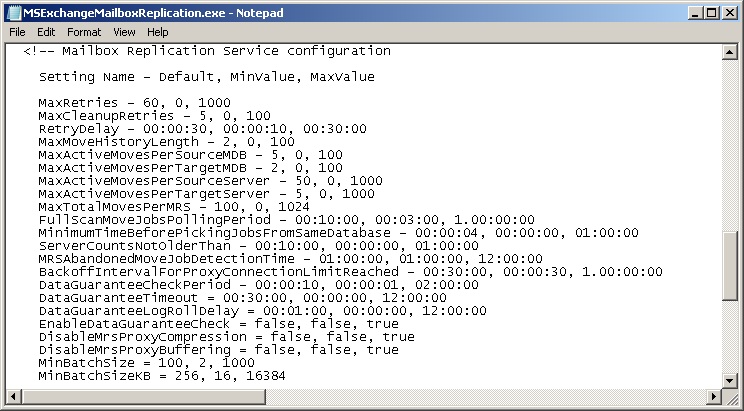
Although it is interesting to know what settings are active for MRS, I would not rush to make changes without knowing exactly why you want to make the change and what is the desired outcome. The Exchange developers made one significant change for Exchange 2010 SP1 when they reduced the MaxActiveMovesPerTargetMDB setting from 5 to 2. This setting controls the maximum number of active moves that an MRS instance can direct to a target database and the reduction is designed to reduce the pressure that a mailbox database can come under as it processes incoming mailbox content. Remember that Exchange 2010 performs content indexing as mailbox contents are transferred to ensure that a “full client experience” (marketing-speak that means that searches are possible) is available after the mailbox pointer is switched in Active Directory to the target mailbox. You can therefore understand that considerable CPU and I/O resources are consumed to process a new mailbox and that if MRS was allowed to process more than a few moves to a single database the risk exists that the disk holding the database might become very busy and reduce its ability to service other client requests.
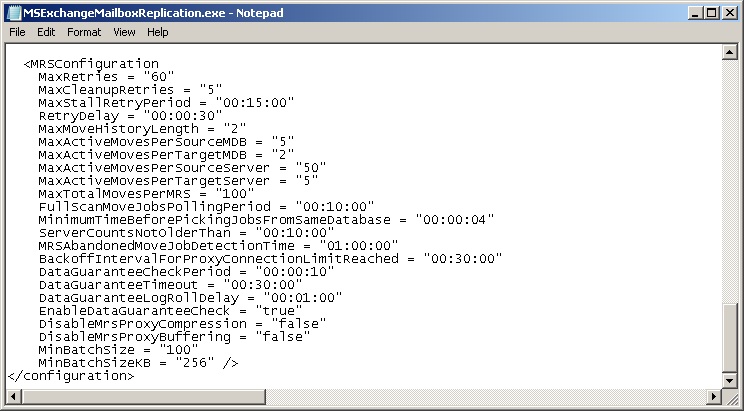
The MaxActiveMovesPerTargetServer setting is set to 5 to ensure that MRS can’t swamp a target server with masses of incoming mailbox moves. You might be surprised that these settings are set reasonably low but the logic is good because it’s more important for a server to maintain good client responsiveness than to become preoccupied with mailbox moves. Remember that these settings only apply to the MRS running on a single CAS. If you have more than one CAS in an Active Directory site, it’s possible that a target server or target database will be asked to handle more than five incoming mailbox moves (for the server) or two (for a database) as apart from knowing what MRS is handling a move request, each MRS processes mailbox moves independently.
It’s possible that you might want to increase these values, but only when a good reason exists. For example, let’s assume that you are in the middle of a migration project and the Exchange 2010 servers aren’t doing much work yet because mailboxes haven’t been moved across from Exchange 2003 or 2007. In this scenario it would be reasonable to increase the settings that control maximum moves per server and per database to accelerate mailbox moves. However, once you’ve reached a condition where the Exchange 2010 mailbox servers have picked up the majority of the user load, you should throttle back the settings to the recommended values. See this post about batching mailbox move requests and this one about how to clear out mailbox move requests once they are complete.
You’ll have to restart the Mailbox Replication service to make any change to a setting effective. Remember that MRS runs on every CAS, so if you want a setting to be effective for MRS throughout the organization, you’ll have to apply the change to each and every CAS. In addition, you will have to check that the change is required and then reapply it (or not) following software upgrades (maybe not for a roll-up update, definitely required for a service pack).
Follow Tony @12Knocksinna


 Thoughtsofanidlemind's Blog
Leave a reply to Diagnosing and fixing slow migration times to Office 365 from Exchange 2010. – Get-SysadminBlog Cancel reply