Some interesting things happened in the Office 365 world this week. First, Microsoft announced that message encryption is now being rolled out to customers to fulfil their goal of providing a method to encrypt messages sent to any recipient rather than just within a bounded organization. Second, the much-awaited hierarchical address book (HAB) is available to Exchange Online. As always, it’s interesting to poke a little behind the formal announcements and speculate on what value lies for customers in these advances.
Office 365 message encryption was originally announced in November 2013. The interval between then and now has been filled with work to prepare the Office 365 infrastructure for the introduction of the new feature, brief the support personnel who will have to deal with customer queries, update online documentation, and so on.
I see three critical points that should be understood about Office 365 message encryption. First, the ability to encrypt messages is provided by Windows Azure Rights Management (WARM). This means that you need to subscribe to a plan that can use WARM before you can use Office 365 message encryption. Customers who previously used Exchange Hosted Encryption (EHE) will move automatically to the new service; if you haven’t used encryption services before you’ll need to add WARM to a plan ($2/month/mailbox in the U.S.). The enterprise-focused E3 and E4 plans already include WARM. Subscribers, like me, to the small business plans cannot use WARM and so are out of luck when it comes to encryption [but you can sign up for a free trial of an enterprise plan to test out the new functionality, which is what I did].
The second point is that the content of encrypted messages are sent as protected HTML attachment. Naturally, Microsoft clients do a fine job of opening and processing the protected attachment as planned, which means that they open a browser to invoke an Outlook Web App (OWA)-like interface to expose the content, which is only revealed after the user authenticates themselves by signing in with an Office 365 identity (tenant log-on) or a Microsoft account (LiveID). The identifier needs to correspond with the email address to which the message was sent.
Not everyone has one of these identifiers and I assume the intention is that someone who doesn’t will proceed to get a Microsoft account as soon as they start to receive encrypted messages. You can certainly criticize Microsoft for taking this approach to recipient authentication but it’s hard to see what other scheme they could have come up with to allow messages to go to anyone using any other email system.
Some ability to customize the instructions (“branding”) provided to recipients is provided through the Set-OMEConfiguration cmdlet. It is possible to include some instructions to recipients in the branding.
The requirement to read encrypted messages through an OWA-like interface means that mobile support is only possible for clients that are capable of invoking a browser to run OWA. As explained here, the exact requirement is “Office 365 Message Encryption works on mobile devices as long as the attachment can be opened in a viewer that supports form posts.” Again, everything works perfectly on Windows Phone but I hazard a guess that some iOS and Android clients might run into choppy waters when faced with the need to process that protected HTML attachment.
The third point is that encryption is performed by policy. Users don’t control what messages are encrypted and what are not as there is no control over this feature exposed through client UI. Transport rules are used to establish the policy for message encryption across a complete organization so that, for example, all messages sent to a particular set of users (or by a set of users) are encrypted while all other traffic is not. To include message encryption in a transport rule, you select the “Modify the message security” action and select “Apply Office 365 message encryption.”
The use of transport rules lends some flexibility to the situation because it is possible to conceive an exception being included in a rule whereby a user could override the organizational policy and send an unencrypted message. However, I can’t imagine many companies allowing this kind of exception. It’s more likely that a rule would be created to look for a keyword in a message subject (like “Encrypt”) and, if the keyword is detected, the message would be encrypted.
Protecting messages against those who might pry into their contents is a good thing, especially at a time when we might not trust government agencies to always do the right thing when snooping is concerned. It will be interesting to see how well Office 365 message encryption is received by customers and how widespread its use becomes over the next year or so. If you need more information about setting up the feature, have a look at this post by Jesper Stahle.
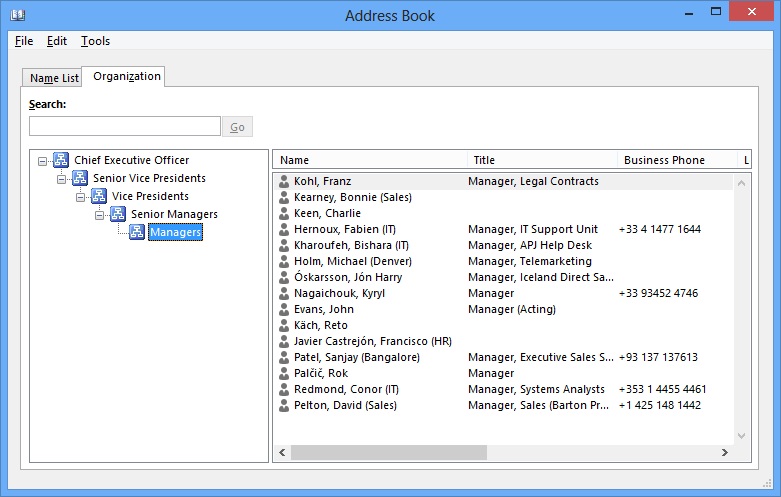
Getting back to the HAB, I sincerely doubt that many Office 365 tenants will use this feature. It’s been available to on-premises Exchange customers since Exchange 2010 SP1 and I don’t know many companies that have even been remotely interested in implementing an address book that requires a lot of background work to construct the views of different layers within the company from CEO downward. I have done it to test the feature for both my Exchange 2010 Inside Out and Exchange 2013 Inside Out books and it works… but…
A feature like this is probably only valuable in large enterprises. Providing a view of company structure is a good thing when there are many operating units with different responsibilities and ever-changing personnel, which is the reason why many enterprises have their own home-brewed version of a tool to navigate the business. However, everyone knows each other in smaller companies and understands where they stand in terms of status and level so the value of these kind of utilities is lessened. And in newer companies, where less importance is given to someone’s position in the hierarchy and their job title and more focus is placed on what they actually do and the success they have had, the availability of the HAB is so-so news.
My assumption is that Microsoft has made the HAB possible for Exchange Online customers because some of the larger and more traditional companies want it, perhaps those who are based in regions where a huge import is placed on status and rank. If so, I wish those who implement a HAB well. Just make sure not to attempt to use the HAB with any other client than Outlook 2010 or Outlook 2013. Nothing else works.
Follow Tony @12Knocksinna


 Thoughtsofanidlemind's Blog
Leave a reply to NeWay Technologies – Weekly Newsletter #83 – February 21, 2014 | NeWay Cancel reply