The calendar sharing feature introduced in Outlook Web App 2010 (OWA) allows a user to grant access to their calendar to another user. To access the option, click on the Share option when in the Calendar and then on Share This Calendar. You’ll then be able to select the user(s) that you want to share your calendar with and define the level of information you want the recipient to be able to see in your calendar.
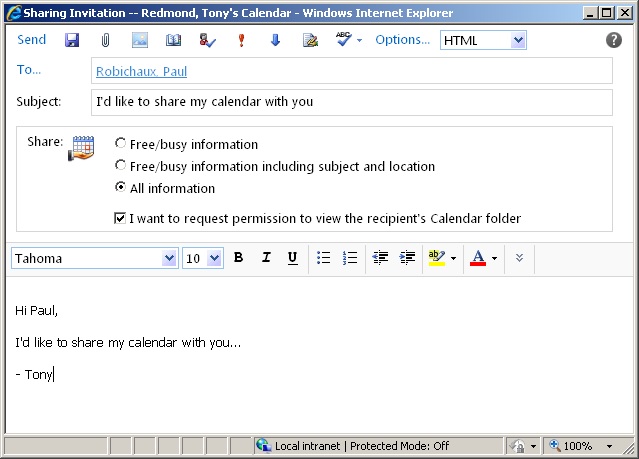
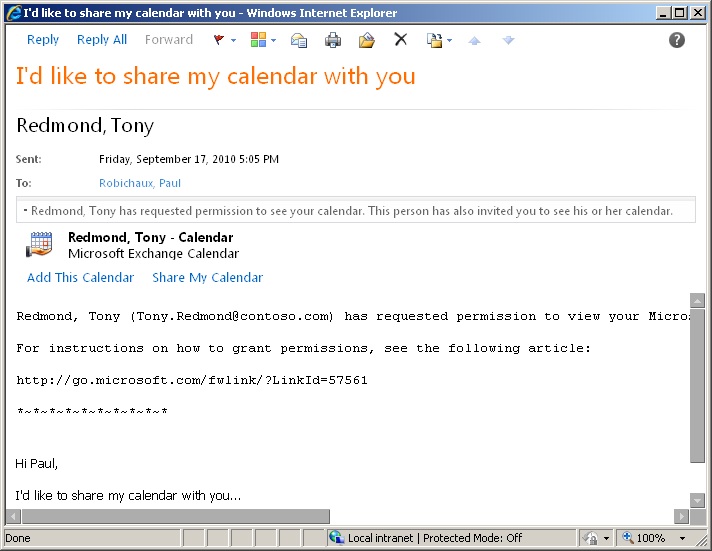
The recipients see a message as shown below. To access the calendar, they simply click on the Add This Calendar link. OWA will then add the calendar to the list of available calendars and the user can then access your calendar whenever they want by simply clicking on the calendar’s entry to instruct OWA to open it.
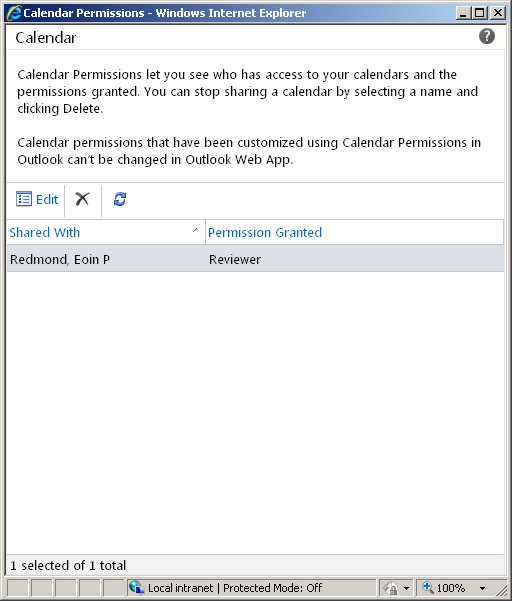
So good so far. The user will be able to see your calendar but they won’t be able to add anything to it or make a change to an existing appointment. In short, they are restricted to “Reviewer” access. You can confirm this by clicking on the Change Sharing Permissions option in the Share menu, when you’ll see something like the screen shot shown below. In this case, just one other user has access to the calendar and all they have is Reviewer access, so it shouldn’t come as a surprise that they won’t be able to add or edit items in the calendar.
Maybe reviewer access is all that’s needed. But there are instances where it’s good to be able to add or edit items in someone else’s calendar and the frustrating thing is that OWA doesn’t support any way to manipulate the permission granted on a calendar. However, this is possible through the Set-MailboxFolderPermission cmdlet, which is the underlying command that manipulates folder permissions. The command that we need to run is:
Set-MailboxFolderPermission -Identity alias:\Calendar -User UsertoGetRights -AccessRights Editor
For example, if my alias is “TRedmond” and I want to grant access to the user “Redmond, Eoin”, the command is:
Set-MailboxFolderPermission -Identity TRedmond:\Calendar -User ‘Redmond, Eoin’ -AccessRights Editor
Note that you can’t run the Set-MailboxFolderPermission cmdlet to alter a permission on a folder unless a permission has already been granted to the folder for the user. If you want to add Reviewer permission for someone who doesn’t already have access to a calendar, you have to run the Add-MailboxFolderPermission cmdlet with a command like this:
Add-MailboxFolderPermission -Identity ‘TRedmond:\Calendar’ -User ‘Pelton, David’ -AccessRights Reviewer
To confirm that everything has gone to plan, we can use the Get-MailboxFolderPermission cmdlet to validate the permissions on the folder.
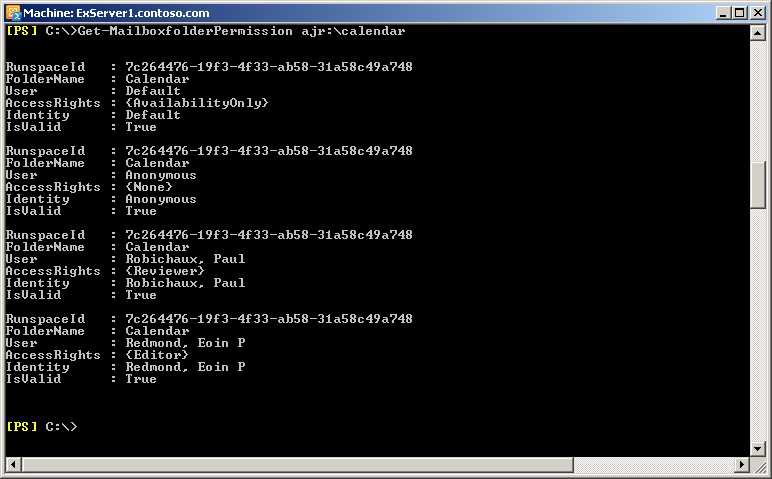
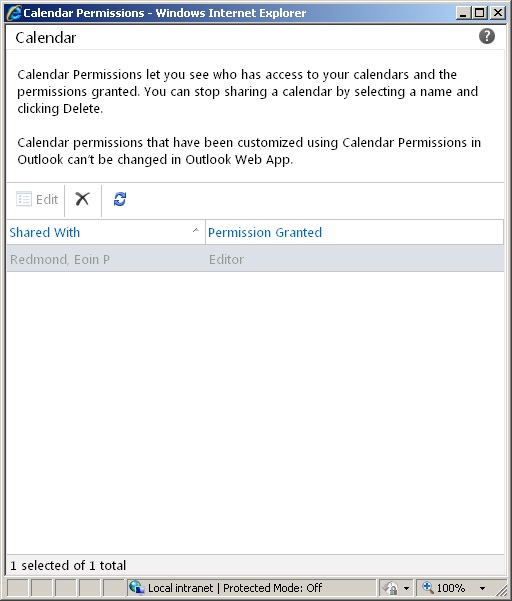
Here you can see that one user has Editor permission and another has the default Reviewer permission. If we checked using OWA’s Change Sharing Permissions option, we’d see something like the screen shot below. Note that you can’t use OWA to edit the permission anymore as the code doesn’t cope with Editor permission.
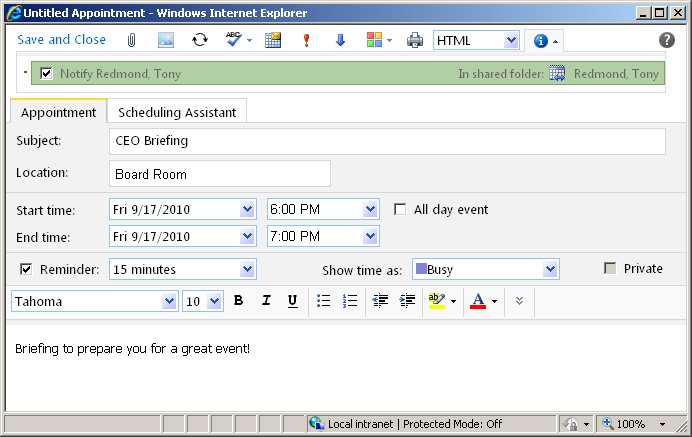
Once a user has been granted Editor permission, they can edit or add items to a calendar. Note the “Notify” checkbox. If set, the user who owns the calendar will receive an “Appointment Created Notification” as a new message in their inbox to provide them with details of the new event.
Calendaring sharing is a nice feature of OWA 2010. It’s just a pity that the developers left out the ability to grant editor access to a calendar – but now you know how to do it behind the scenes!
– Tony
Follow Tony @12Knocksinna
Read more information about the new features in Exchange 2010 and Outlook Web App 2010 in my Microsoft Exchange Server 2010 Inside Out


 Thoughtsofanidlemind's Blog
Leave a reply to Grant editor rights in outlook 2007 « Blog Outlook Cancel reply