This content comes from a chapter removed from my book Microsoft Exchange Server 2010 Inside Out


The chapter was supposed to be published as an extra that could be downloaded but that hasn’t happened to date, so here it is. Part 2 is available here and part 3 here. If you like this kind of content about Exchange Server, why not follow me on Twitter so that you receive updates when I post material.
Update: If you’re interested in upgrading to Exchange 2013 and need to migrate some public folders to the modern format (or indeed, to migrate some public folders to Exchange Online in Office 365), then you might like to read my thoughts on the migration process. Then again, you might not!
Enjoy!
Exchange 2010 Public Folders
To me, public folders are the cockroaches of Exchange. They continue to persist despite seemingly being on the edge of extinction several times. Microsoft originally launched public folders as the cornerstone of Exchange’s collaborative capabilities, something that could take on the ability of Lotus Notes to generate end-user applications based on electronic forms. Public folders offer the ability to replicate data so that a copy is close (in network terms) to users, a feature that was tremendously important in the days of expensive and scarce bandwidth. Public folders were the way to share documents and other items across organizations and can be mail-enabled to allow users to send messages to folders, a feature often exploited to allow public folders to serve as the enduring repository for email-based discussion groups.
Many still remember the demos that Microsoft did to prove the capabilities of public folders when they were launched in Exchange 4.0. Playing chess through public folders was my favorite demo as this illustrated the power of electronic forms to gather and display data coupled with the data replication model that used email as its transport. Regretfully, EFD, the electronic forms designer utility, never moved with the times and languished as a 16-bit application that proved less than useless as Exchange evolved.
Nothing remotely similar in terms of shared storage focused on office applications existed in Microsoft’s product lineup until SharePoint 2001 appeared and even though SharePoint has evolved dramatically since then, it still doesn’t deliver quite what public folders do. Public folders are antique, undervalued, and creaking, but they act as a valuable applications platform for many companies and that’s why they are still around. Some companies have hundreds of thousands of folders in their public folder hierarchy, even if they don’t quite know what all the folders are used for, whether they still hold useful information, who created the folders in the first place, and what to do with them in the future.
Public folders and Exchange 2010
Despite their popularity in some quarters, once Microsoft launches into the development cycle for a new version of Exchange, the same question is raised whether this is the version when public folders are finally dispatched to the great byte bucket in the sky. To their credit, Microsoft listened to customers and started to invest a small amount of engineering resource into public folders in Exchange 2007 and have continued on this path in Exchange 2010. Public folders are only required in Exchange 2010 if you:
1. Have the requirement to support Outlook 2003 clients,which cannot use web-based distribution to access OAB and free/busy data. Outlook 2007 clients are also able to use public folders in this way but Outlook 2010 clients only use web-based distribution to access OAB and free/busy data.
2. Have applications that are based on public folders. Ten years ago, these applications were reasonably popular but recently they have become a fast-disappearing category as companies have migrated applications to more modern and functional platforms. SharePoint and InfoPath forms are an option that is often considered for the kind of forms-based applications that were deployed on top of public folders.
If you deploy a new Exchange 2010 organization, you’ll be asked by the installation procedure whether any Outlook 2003 clients (or older Entourage clients) exist inside the organization. Outlook Express and other IMAP4 clients are also able to access public folders, but they don’t depend on them for OAB and free/busy. If you need to support these clients, Exchange will create a public folder database to be used for the OAB and free/busy. If not, you’ll never see a public folder database unless you decide to create one. Clients with their mailbox on an Exchange 2010 server can only access public folders if replicas are available in a database hosted by an Exchange 2010 server. If this is not the case, clients will be told that they can’t access public folders because there is no Exchange 2010 public folder server.
It would be unreasonable to expect a dramatic increase in functionality for public folders after a decade of doubt, but it is nice to see that the code is still being maintained. In summary, public folder management is divided between two consoles and EMS:
- The public folder management console (Figure 1) allows administrative access to the folder hierarchy, including the ability to create new folder replicas on different servers, remove folders, and mail-enable folders. No access is available to the content of public folders through the console as this feature remains the sole preserve of clients. In other words, if you want to see inside a public folder, you have to use a client like Outlook or OWA that can open a folder and view its contents. Outlook is the only client that is able to report how much storage a public folder occupies. The same is true of folder permissions. You can create a new public folder with the console but then need to revert to Outlook or EMS to set permissions.

- The database management section of EMC allows you to create new public folder databases. Figures 2 and 3 illustrate the two screens of the New Public Folder Database Wizard. After public folder databases are created, you can update their properties such as setting storage limits, replication schedules, and limits for deletion retention and item age. Inside mixed mode organizations that support both Exchange 2007 and 2010 servers, you have to perform public folder management using the Exchange 2010 ESM because of the schema changes made in Active Directory and the Store for Exchange 2010.The situation is slightly more complex when Exchange 2003 servers are present but the same principle exists that you should manage public folder servers using the same version of the management tools as the public folder server. Replication between the different versions of servers is sufficient to keep public folder servers synchronized across the organization.


- Exchange 2010 SP1 includes a new Manage Public Folder Settings Wizard that you can use to set user permissions for folders and their sub-folders (Figure 4). Apart from making it much easier to manipulate public folder settings, the wizard is a good learning aid to help administrators become acquainted with the EMS cmdlets that can be used to work with public folders. For instance, to learn the proper syntax for the command to grant a user access to a public folder.

- EMS offers a set of cmdlets for public folder management that underpin the features offered by EMC and the public folder management console.
An account must hold the public folder management role before it can perform any public folder management task.
Public folders continue to be organized into two sub-trees within the folder hierarchy:
- Default public folders (the IPM_Subtree) are those available for population by client applications.
- System public folders (the non_IPM_Subtree) are not revealed to client applications and are used by Exchange to store system data such as the OAB and free and busy data as well as the organizational forms used by Outlook 2003.
Exchange does not include the content of public folders in its content indexes. You have to use SharePoint if you need to index public folders for search purposes.
If you are used to working with public folders through EMS in Exchange 2007, you need to check any code (especially in scripts) that you have developed for this purpose because Microsoft has made a number of changes in the way that the cmdlets work.
Creating a new public folder database
Exchange 2010 creates a default public folder database if you tell the installation procedure that you need to support Outlook 2003 clients. Because DAGs don’t support public folder databases, you need to create a second database on another server if you want to replicate public folders to ensure some level of high availability. You can create a new public folder database with the New-PublicFolderDatabase cmdlet. This example creates a new public folder database on a specified server and then mounts the new database. Note that you have to tell Exchange where to place the database and transaction logs; this is a difference from Exchange 2007 where you always create a public folder database in a nominated storage group so Exchange can determine the location of the files from the default location of the storage group:
New-PublicFolderDatabase 'PubFolders1' –Server 'ExServer1' -EdbFilePath 'D:\Exchange\PF\PFDatabase.edb'

–LogFolderPath 'D:\Exchange\PF\'

–CircularLoggingEnabled $True

Mount-Database 'PubFolders1'
You can use the Get-PublicFolderDatabase cmdlet to validate that the new database exists:
Get-PublicFolderDatabase –Identity 'PubFolders1' | Format-List
The same cmdlet is used without a parameter to see all the public folder databases that exist within the organization. By default, Exchange does not return the names of public folder databases that reside on Exchange 2003 or 2007 servers, so if you want to see this information, you have to specify the –IncludePreExchange2010 parameter as shown below. The-Status parameter instructs Exchange to return information about the mount and last backup status.
Get-PublicFolderDatabase –IncludePreExchange2010 –Status
Retrieving information about all of the public folder databases in an organization can take some time to complete because of the need to access information from the different servers that host the databases. You can restrict retrieval to a specific server by passing the server name in the –Server parameter.
Get-PublicFolderDatabase –Server 'ExServer1' –Status
Adding new public folders
Now that we have a public folder database, we can populate it with folders using the New-PublicFolder cmdlet. To create a new top-level folder, we use “\” (the root) as the location. For example:
New-PublicFolder –Name 'Technical Information' –Path '\' -Server 'ExServer1'
We can then populate the sub-folders under the top-level folder that we have just created. This example creates a new public folder called Exchange 2010 under the Technical Information top-level public folder and hosts the initial replica on the server called ExServer1. Of course, you don’t have to create new public folders with EMS and many administrators will opt to create folders with Outlook so that they can use a GUI.
New-PublicFolder –Name 'Exchange 2010' –Path '\Technical Information' –Server 'ExServer1'
If you run this command on a mailbox server that has a public folder database, you can omit the server name and Exchange will create the folder in the local database. The root folder (named Technical Information in this case) must exist on the target server. To create the folder at a deeper location in the hierarchy, you pass the complete path to the folder. For example:
New-PublicFolder –Name 'Administration' –Path '\Technical Information\Exchange 2010'-Server 'ExServer1'
Retrieving information about public folders
After you create the public folder, you can check its properties with the Get-PublicFolder cmdlet. As you can see, the complete path has to be stated to allow Exchange to locate the folder:
Get-PublicFolder –Identity '\Technical Information\Exchange 2010\Administration'
A complete list of public folders under the IPM_Subtree is generated by passing the root folder as the path and including the Recurse parameter to force Exchange to traverse the hierarchy and report all folders that it finds. Recurse instructs Exchange to retrieve information about all child folders and their children. Use the –GetChildren parameter instead of –Recurse if you want to just fetch details of the child folders under the path. The two parameters are mutually exclusive. In either case, while you always work with the copy of the public folder hierarchy on the server to which you are connected, this operation can take some time to complete if the public folder hierarchy is large and might not contain any newly created folders if their details are still being replicated. As shown here, you can pipe the list to capture it in a text file.
Get-PublicFolder –Identity '\' –Recurse –ResultSize Unlimited > C:\Temp\PublicFolders.txt
Scanning a large list of folders to find a particular one can be frustrating. You can filter what Exchange returns as follows:
Get-PublicFolder –Identity '\' –Recurse | Where {$_.Name –eq 'Exchange 2010'} | Format-List
HasSubFolders                  : True

HiddenFromAddressListsEnabled  : False

IssueWarningQuota              : unlimited

LocalReplicaAgeLimit           :

MailEnabled                    : False

Name                           : Exchange 2010

ParentPath                     : \Technical Information

PerUserReadStateEnabled        : True

ProhibitPostQuota              :

Replicas                       : {PFDatabase1}

ReplicationSchedule            : {}

RetainDeletedItemsFor          :

UseDatabaseAgeDefaults         : True

UseDatabaseQuotaDefaults       : True

UseDatabaseReplicationSchedule : True

UseDatabaseRetentionDefaults   : True

HasModerator                   : False

Identity                       : \Technical Information\Exchange 2010

OriginatingServer              : ExServer1.contoso.com
We can see that the folder has some sub-folders and we also know the path to the folder, so we can discover the set of sub-folders by running the Get-PublicFolder cmdlet using the folder path and the –Recurse parameter.
Get-PublicFolder –Identity '\Technical Information\Exchange 2010' –Recurse | Select Name, Identity | Format-Table –AutoSize
The same technique can be used to retrieve information about system public folders such as those used to hold OAB and free/busy information.
Get-PublicFolder –Identity '\Non_IPM_Subtree' –Recurse | Select Name, Identity | Format-Table –AutoSize
Two cmdlets are available to retrieve some information about public folder contents. The intention of these cmdlets is that they can be used for basic reporting purposes so that you understand what’s going on within public folders. They are not intended to provide comprehensive reports, although there is no doubt that considerable ingenuity can be exerted to create good looking and interesting reports based on the data generated by these cmdlets.
- Get-PublicFolderItemStatistics: Provides an insight into the content that exists in a public folder by letting administrators view the item titles, size, and so on.
- Get-PublicFolderStatistics: Provides summary information about anything from a single folder to all of the public folders known in the hierarchy, including system folders. The summary is provided in alphabetical order and includes name, the number of items in the folder, the size of the items in the folder, and the date and time of the user access to the folder.
The Get-PublicFolderItemStatistics cmdlet is new to Exchange 2010 and lists the basic details of the items in a folder. You cannot see the actual content itself without accessing the folder with a client. For example:
Get-PublicFolderItemStatistics –Identity '\Departments\Finance' | Select Subject, CreationTime, MessageSize | Format-Table –AutoSize
Subject                                         CreationTime          MessageSize

-------                                         ------------          -----------

Finance Planning Sessions – FY10                11/30/2009 6:07:44 AM 9.479 KB (9,707 bytes)

Restricting expenses                            11/30/2009 6:06:45 AM 47.9 KB (49,046 bytes)

Planning for change                             11/30/2009 6:02:20 AM 1.367 MB (1,433,576 bytes)

News about finance changes                      11/30/2009 5:56:07 AM 1.312 KB (1,343 bytes)
Moving to the Get-PublicFolderStatistics cmdlet, if you don’t pass a folder identifier, you get a summary list of all folders in the hierarchy. If you don’t specify the name of a server that hosts a public folder database, Exchange connects to the first public folder database available in the site. The LastUserAccessTime property here is of interest in order to identify public folders that have not been accessed recently by a user because these folders become candidates for deletion if you decide to clean up the public folder structure. It’s unfortunate that many public folders are created, used for a short period, and then rapidly become a repository that is accessed less and less frequently before becoming unwanted orphans that take up valuable database space. If you want to identify public folders that should be deleted, you could sort the output from the Get-PublicFolderStatistics cmdlet by the LastUserAccessTime property so that the folders that have not be accessed recently are at the top of the output. You could then contact the owners of each folder to ask whether the folder should be deleted or kept. The command to generate the report about public folder statistics sorted by last access time is:
Get-PublicFolderStatistics –Server ExServer1 | Sort-Object LastUserAccessTime | Format-Table Name, ItemCount, LastAccessTime –AutoSize
Name                                             ItemCount        LastUserAccessTime

----                                             ---------        --------------

Add-ons                                               34          12/30/2009 3:43:31 AM

Administration                                        112         12/30/2009 3:46:29 AM

Annual Budgets                                        250         12/30/2009 3:58:56 AM

Audits                                                17          12/30/2009 4:01:08 AM

Capital Expenditure                                   52          12/30/2009 4:00:56 AM
Here’s what you might see when you drill down on a specific folder. This output reveals that there is more information available about a folder than shown in the summary view.
Get-PublicFolderStatistics –Identity ‘\Departments\Finance’ | Format-List
ContactCount             : 1

CreationTime             : 11/30/2009 3:57:54 AM

DeletedItemCount         : 12

FolderPath               : Departments\Finance

ItemCount                : 533

LastAccessTime           : 12/30/2009 3:57:54 AM

LastModificationTime     : 12/30/2009 6:58:53 AM

LastUserModificationTime : 12/30/2009 5:22:30 AM

LastUserAccessTime       : 12/30/2009 5:23:30 AM

Name                     : Finance

OwnerCount               : 1

TotalAssociatedItemSize  : 0 B (0 bytes)

TotalDeletedItemSize     : 0 B (0 bytes)

TotalItemSize            : 1.426 MB (1,494,997 bytes)

DatabaseName             : PFDatabase1
We can combine the knowledge we’ve gained from the two examples to do something more useful, such as outputting some data about all folders into a CSV file that we can later manipulate with Excel to understand different aspects of our public folder deployment. For example, we might ask questions such as what the largest folder is, what folders have not been accessed in several months, and what folders are empty? Here’s how to generate the list:
Get-PublicFolderStatistics –Server ExServer1 | Select Name, ItemCount, TotalItemSize, LastUserAccessTime, LastUserModificationTime | Export-CSV 'C:\Temp\Public-Folders.CSV'
Updating public folder properties
Set-PublicFolder is the basic cmdlet used to update the properties of a public folder. Table 1 lists the properties that are most commonly altered.
| Property | Meaning |
| Age Limit | Sets the age limit for all replicas of a public folder. Folders and their replicas are automatically removed when the age limit expires. Default: Not defined, meaning that folders are persistent until they are removed by an administrator. |
| IssueWarningQuota | Sets the limit at which Exchange issues a warning to public folder owners that the folder is almost full. Default: Unlimited (database default is used) |
| MaxItemSize | Sets the limit of the size of an item that a user can post to a folder. Default: Not set (database default is used) |
| PerUserReadStateEnabled | Tells Exchange to maintain a read state for each user. The read state tracks whether an item has been read by a user. Default: True |
| ProhibitPostQuota | Sets the limit at which users are no longer allowed to post items to a folder. Default: Not set (database default is used). |
| RetainDeletedItemsFor | Sets the retention period for items deleted from a public folder. Default: Not set (database default is used – typically 14 days). |
Table 1: Common public folder properties
To see the default limits for a public folder database, select it through EMC, view properties, and then click on the Limits tab (Figure 5).
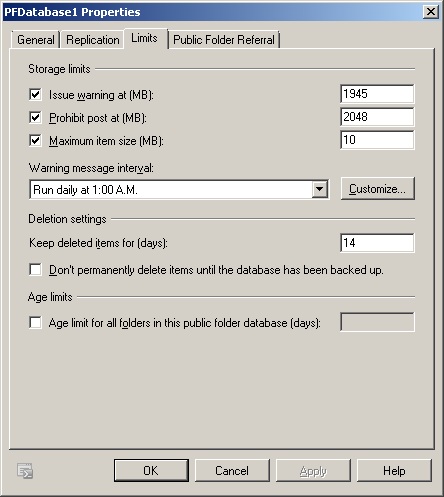
A public folder that is used as a repository for electronic forms is a good instance of when you might need to override the default database storage limits to set a maximum item size that allows the forms to be posted without allowing users to post other items. This example sets a maximum item size of 25KB and sets appropriate storage limits for a folder.
Set-PublicFolder –Identity ‘\Departments\Finance\Forms’ –AgeLimit ‘365.00:00:00’ –UseDatabaseQuotaDefaults $False –MaxItemSize 25KB –ProhibitPostQuota 500MB –IssueWarningQuota 465MB –RetainDeletedItemsFor ’90.00:00:00’
Follow Tony @12Knocksinna


 Thoughtsofanidlemind's Blog
Leave a reply to Exchange 2010 Public Folders: Part 2 | Thoughtsofanidlemind's Blog Cancel reply