HTTP error 400 accessing Office 365


BadRequestPortal

HTTP Error 400. Can’t access the Office 365 Portal

I recently hit a problem when attempting to access the Office 365 Portal with Chrome. Any attempt resulted in a HTTP Error 400 as shown above. The problem was confined to a single PC and a single browser on that PC as both IE and Edge were happy to connect to Office 365.

The wonders of Internet search quickly located some help and suggested that the issue was due to a corrupted cookie associated with the request.

PortalCookies

Cookies used by portal.office.com

As obvious from the screen shot, connections to portal.office.com use a lot of cookies. There’s no way to say which of the 22 cookies might be corrupt, so the easiest and quickest fix is to delete the cookies and force the next connection to recreate whatever is needed. Do this by selecting the X opposite the set of cookies and then click Done.

Ten seconds later a connection was made and the problem resolved. Isn’t it great when things fall into place so easily!

Follow Tony @12Knocksinna

Posted in Office 365, Uncategorized | Tagged , | Leave a comment

The curse of badly written blogs


As a frequent blogger, I take great interest in other blogs, especially those who offer coverage of topics that interest me, such as Exchange and Office 365, or even military history, if it comes to that. Recently, it seems that many of the blogs that cover Exchange (in particular) are not as strong as they were once.

The situation is worse with blogs that proclaim themselves to be “guru” or “expert”, a self-awarded status that is not merited or earned on the basis of the content offered.

Some of the published content is OK, if only it was not obscured by poor writing and opaque grammar. When I started to write articles and books about technology, my editors hammered home the lesson that I should always make sure that the reader knows what object is the actor in a situation. Scattering “it” into a sentence and expecting the reader to understand what “it” means in the presented context requires the mind of a lawyer.

Another horrible habit that is all too prevalent is the termination of a sentence without explaining a statement. Here’s an example of an opening sentence from a blog post that I selected at random:

Exchange 2016 and 2013 are processor hungry so it is very important to size the processors correctly.”

Two issues exist here. First, we have the leading statement that Exchange 2016 and Exchange 2013 are both processor hungry without any evidence being offered that this assertion is correct. Are these versions more demanding of processor power than Exchange 2010 is? If so, a citing of some reliable evidence provided by a competent party would be appropriate. In other words, it’s not good enough to make a statement and assume that the reader understands what “processor hungry” means without providing some way for the reader to understand why this condition exists. In addition, what processor does this statement refer to? I assume it’s a server CPU, but even that is somewhat nebulous given the current state of CPU technology when cores might be a more important issue to focus upon.

The next problem is the statement “it is very important to size the processors correctly.” First, no explanation is offered as to why such importance is attached to this activity. Will the world stop if we fail to size processors correctly? Or will the Exchange servers slow down a little, or a lot, or fail to operate at all? The writer would have done much better had some additional context been provided. For instance: “to ensure optimal performance, it’s important that any server running Exchange is correctly configured with properly-sized processor capacity.” OK, we use more words, but I suggest that the meaning is obvious.

I also hate failure to copy edit, especially because I often fall into this trap myself in an effort to get something out the door in time. However, it doesn’t take a lot of time to read text over to look for obvious flaws, such as the first letter of “Exchange” not being capitalized to tell us that the word refers to the server product rather than an interchange of some sort. Copy editing also identifies impenetrable sentences that are often a dump from the author’s mind. The text makes perfect sense to the writer but requires several readings before someone else can understand what’s going on. Take this example from the same article:

“This was my lab so we didn’t get any issue as load is minimum but try it in your production and let us know and give 5 starts to Marc if it helps.”

After several readings, I conclude that the meaning is:

The example shown above was run in my lab environment. No issue was encountered because of the minimum load placed on servers in that environment. You can try running the script in your production environment to see what results you obtain. Let us know how you get on and please do recognize the script author if you find that his work helps.”

Of course, the advice to run a script in a production environment is not the course of action that any experienced administrator would take. You should always test a script downloaded from the Internet in a sandbox environment to make sure that it cannot do anything harmful before you let it anywhere near production servers. The sentence cited above is a classic example of a throwaway remark that is badly thought through and badly formatted that could lead to someone doing something that they regret, all because they read some advice contained in a blog.

Please don’t stop writing blogs. It’s great to share your experience and knowledge with others. But please remember that your work will be so much better if you are clear, concise, and accurate. You’ll benefit by writing better and your readers will absolutely benefit from your work. It’s a win-win situation.

Follow Tony on Twitter @12Knocksinna

Posted in Exchange, Writing | 3 Comments

Updated version of the Outlook Groups apps available


Microsoft has released updated versions of the Outlook Groups apps. The apps don’t have anything much to do with Outlook but are named as such as to create an association with the brand. In reality, these apps are all about Office 365 Groups and allowing users mobile access to threaded conversations and documents stored in group document libraries. Access is currently unavailable to group calendars, but event notifications for group meetings do arrive in the app.

I’ve been playing around with the version available for Windows 10 Mobile on my Lumia 950 XL. The new Files interface (below) is attractive and looks very much like the Delve app.

OFiles

Files in an Office 365 group document library

Here’s what the opening screen looks like after you sign into Office 365, Favorite groups are shown first followed by groups that the user has joined. If you press and hold a group name, the option to Pin the group to the home screen is revealed, which is a nice way to create a short-cut to a particular group.  The Discover option uses data held in the Microsoft Graph to determine what other groups the user is most likely to want to join based on common interests and membership.

O365app

Listing of Office 365 Groups

Overall, I like the new interface very much. And because it is new, we’ve had to update the information about the Outlook Groups app in Chapter 9 of “Office 365 for IT Pros”. The updated content is in the June 18 version of the eBook. Our change log details all of the changes made to Office 365 for IT Pros. Copies of the book are available on ExchangeServerPro.com (PDF and EPUB versions) and Amazon (Kindle).

Follow Tony on Twitter @12Knocksinna

Posted in Cloud, Email, Office 365, Office 365 Groups | Tagged , , , , | Leave a comment

Office 365 for IT Pros (3rd edition) – Change Log for Updates


Office 365 for IT Pros is intended to be a “living” book. In other words, the content we published when the book first appeared on June 1, 2016 is under constant review in light of developments that occur, typos and other issues that we find and fix, and comments that come in from readers. Depending on the demand of other work and the importance of new information, we might build new versions of the book more quickly. The typical cadence is a weekly build (on Sunday). It can take up to a day for new files to appear in Amazon for the Kindle version, which is why we date the files for Monday.

O365ITProDate

Viewing the date that the book was updated (EPUB version)

The current version of the book is dated 25 May 2017. Updates are provided free of charge to those who bought the third edition. The exact mechanism depends on where you purchased the book.

  • If you buy from Practical365.com (the new name for ExchangeServerPro.com) and registered an account with that site, you can download free updates (PDF and EPUB formats) for the edition that you purchase from the site.
  • If you buy a Kindle version from Amazon, you can download free updates from Amazon.com. You do this from the Amazon site by going to Manage Content and Devices, select the book, and click on Update Available. Amazon can sometimes be slow at making updates available through this route (they want to avoid lots of extra downloads, so they force authors to go through hoops before they release an update). If an update doesn’t show up, you might have to ask Amazon support to delete the entry in your list and get a refreshed copy of the book.
  • Free updates are not available to people who receive copies distributed by third parties. We provide updated content to companies who buy from us in order that they distribute the latest available text, but we don’t have a way to reach those who receive books in this manner thereafter.

Here’s the list of the changes made to date. The number of changes across multiple chapters gives you an idea of how hard it can be to keep up with technology updates inside Office 365… To date, we have released the equivalent of an additional book (> 150 pages) through updates. It’s just part of living with change inside Office 365.

Chronological updates

Date Chapter Change
25 May 1 (Introduction) New graphic for Figure 1-3 with Planner app included.
25 May 9 (Groups) Outlook 2016 has some updated dialogs used when creating Groups.

Correction in PowerShell example for policy controlling the creation of groups.

25 May 10 (Teams and Planner) iOS mobile app for Planner released on May 19.
25 May 19 (Reporting) Power BI Content Pack for Office 365 is now in public preview.
25 May 23 (Doing More) Skype for Business integration with OWA has changed a little, so we updated the description. In addition, the comparison of Yammer, Teams, and Outlook groups is updated. Also, noted that Skype for Business meetings can be scheduled with the Outlook for iOS and Android clients.
15 May 9 (Groups) Actionable messages are now out of preview.
15 May 10 (Teams and Planner) New screenshot for Office 365 Admin options for Teams.
15 May 18 (Security and Compliance) Supervision Policies are now generally available and replace the Supervisory Review Policies described in this chapter. We will cover the new policies in detail in the fourth edition of Office 365 for IT Pros. When going through the chapter to note this change, we also took the opportunity to fix some small errors that we found.
8 May 1 (Introduction) Removed some obsolete text.
8 May 2 (Making the move) Emphasized that Microsoft ceased support for Exchange 2007 in April 2017.
8 May 9 (Groups) Description of how the Outlook apps support Groups.
8 May 10 (Teams and Planner) Added detail of support for the To-Do app.
8 May 18 (SCC) Rewritten section covering content searches.
8 May 21 (DLP) Unified DLP policies can now exclude SharePoint and OneDrive sites from processing.
1 May 1 (Introduction) Microsoft Q3 FY17 results say that there are now 100 million monthly active users.
1 May 7 (Mailboxes) Focused Inbox available to some builds of Outlook 2016 for Windows.
1 May 10 (Teams and Planner) Teams supports the capture of chats to mailboxes so that they can be included in content searches.
1 May 16 (Retention) You can update mailbox plans to change the retention policy assigned to new mailboxes. Other updates and corrections.
1 May 18 (SCC) You can now add inactive mailboxes to content searches.
24 April 1 (Introduction) South Korean Office 365 datacenters now in operation. Also, the release of To-Do to join the set of Office 365 mobile apps.
24 April 2 (Making the decision) Link to Microsoft GDPR site included.
24 April 9 (Office 365 Groups) Outlook apps for iOS and Android are due to replace the Outlook Groups app, which will still be available for Windows 10 Mobile.
24 April 10 (Teams and Planner) Release of the preview of the Wunderkind replacement app for personal task management (To-Do).
24 April 18 (SCC) Inclusion of text about search permission filters. Also, removal of obsolete content about preservation policies (now replaced by Office 365 retention policies).
24 April 21 (DLP) Unified DLP policies now support the creation of custom sensitive data types.
24 April 23 (Doing more) Notes on recent updates for Sway.
17 April 7 (Mailboxes) Inclusion of information about registry settings that can be used to control the Outlook 2016 synchronization slider.
17 April 16 (Retention) Several changes following the introduction of Office 365 retention policies in the Security and Compliance Center, including the removal of some obsolete material.
17 April 20 (IRM) Note that IRM is not fully supported in the Office 365 Germany and China datacenters.
10 April 1 (Introduction) New Office 365 Enterprise K1 plan details.
10 April 7 (Mailboxes) PowerShell support is now available for sweep rules.
10 April 10 (Planner and Teams) Kiosk plans now support access to Teams.
10 April 11 (Public folders) Office 365 retention plans support public folders. However, they do not support classification labels.
10 April 16 (Retention) Note that Office 365 Retention Policies are now available through the Security and Compliance Center and that these will eventually replace Exchange retention policies for some tenants.
10 April 18 (SCC) You can now customize the layout of the Security and Compliance Center console. Also, the Classifications tab is used to access the options to create and manage labels used to classify content. Finally, a note that preservation policies are now replaced by Office 365 retention policies.
3 April 7 (Mailboxes) Include information about how to keep copies of delegate-sent emails in user mailboxes.
3 April 9 (Groups) Add section about how to recover Office 365 Groups.
3 April 10 (Planner and Teams) Remove references to no soft-delete capability for Office 365 Groups, because it’s now available! In addition, you can now assign tasks to multiple people.
27 March 7 (Mailboxes) Fix typo in section about expandable archives.
27 March 9 (Groups) New “invite others” option (to a group) added to OWA.
27 March 10 (Planner and Teams) From March 21, Teams is rolling out to Office 365 education tenants.
27 March 16 (Retention) Clarification about the processing of the Deleted Items retention tag. Also, rewrote the section about retention policies and clients to reflect current UIs.
27 March 19 (Reporting and Auditing) Rewrote and moved some sections around for greater clarity and to remove some obsolete material. Fixed some typos too!
20 March 7 (Mailboxes) Updated information about expandable archives.
20 March 10 (Planner and Teams) Updated script for license assignment (for Planner). Also, added extra information following the General Availability of Teams on March 14.
20 March 21 (DLP) General availability of the Unified DLP policies in the Security and Compliance Center – new text and description.
20 March 22 (Delve) Several screen figures refreshed to reflect current UI of MyAnalytics. Some typos fixed. New text for analytics snapshot.
13 March 7 (Mailboxes) Microsoft has resumed the roll-out of expandable archives across all Office 365 Datacenter regions.
13 March 9 (Groups) Add note about saving email attachments into the document libraries for Office 365 Groups.
13 March 10 (Planner and Teams) Teams reaches General Availability on March 14, so text adjusted to reflect the new status.
13 March 18 (Security and Compliance) Reporting dashboard now available.
13 March 22 (Delve) New UI for the MyAnalytics Outlook/OWA add-in app.
13 March 23 (Doing more) Extra commentary about cloudy attachments and OneDrive for Business. Some typos fixed. Updated section comparing Teams to Yammer Groups and Office 365 Groups.
6 March 2 (Making the decision) SLA information for Q4 2016 now available.
6 March 5 (Managing Office 365) Updated link to the Office 365 Adoption content pack.
6 March 6 (Hybrid Connections) Fixed several typos in the text.
6 March 9 (Groups) New access controls for group-enabled SharePoint team sites (modern team sites). Change in how copies of messages sent to groups are available to users.
6 March 15 (Clients) Multiple instances of “enrolment” changed to “enrollment”.
6 March 16 (Retention) Minor wording changes and corrections.
6 March 17 (eDiscovery) Minor wording changes and corrections.
6 March 18 (Security & Compliance Center) Minor wording changes.
6 March 19 (Reporting) Section covering the Office 365 Adoption content pack for Power BI.
6 March 22 (Delve) Updated description of Delve intelligent search. Plus fixed typos and adjusted wording to clarify and expand in some sections.
27 Feb 1 (Introduction) Updated 1-1 Map to include German datacenters. Many other small wording changes. Some corrected links.
27 Feb 2 (Making the decision) Corrected several minor errors, including some broken hyperlinks and misplaced words.
27 Feb 6 (Hybrid connections) Erroneous reference to chapter 5 (shown as 6) replaced.
27 Feb 8 (Mail enabled objects) Some rewriting of text about distribution groups to clarify topics.
27 Feb 9 (Office 365 Groups) Several minor errors (typos) corrected in text and two coding errors corrected in PowerShell examples.
27 Feb 11 (Public folders) Removed obsolete material.
27 Feb 13 (Hybrid recipients) Minor corrections.
27 Feb 20 (IRM) Updated text for super users and to emphasize that users need the correct licenses to update protected content.
27 Feb 23 (Doing more) Minor corrections.
20 Feb 1 (Introduction) Amended text covering how Outlook.com uses the Office 365 infrastructure.
20 Feb 8 (Other mail enabled objects) Note that Microsoft really wants tenants to create new Office 365 Groups instead of traditional distribution groups and how they have changed the EAC UI to nudge admins along the path.
20 Feb 9 (Groups) Hidden group membership is supported, but only if you create a group with PowerShell (New-UnifiedGroup). But you cannot change the membership visibility afterwards.
20 Feb 12 (Addressing)) Minor corrections and clarifications.
20 Feb 22 (Delve) Delve search updated to incorporate intelligence from Office Graph.
13 Feb 1 (Introduction) New format for Office 365 Roadmap.
13 Feb 3 (Identities) Section added on how to manage user access to Office 365 tenants.
13 Feb 5 (Managing Office 365) Changes to the description about the Service Health Dashboard.
13 Feb 9 (Groups) Set-UnifiedGroup parameter to hide the membership of a group no longer available. In addition, noted that the Outlook for Mac 2016 client is going into preview with Office 365 Groups support.
13 Feb 20 (IRM) Unified Azure Information Protection client is now available.
13 Feb 23 (Doing More) OneDrive for Business Admin console is now generally available and accessible through the Office 365 Admin Center.
6 Feb 1 (Introduction) Guidance from Microsoft that changes shown in the Message Center are authoritative for a tenant; the roadmap is general guidance.
6 Feb 7 (Mailboxes) Exchange Online now includes an archive folder in its default set.
6 Feb 9 (Groups) Added content explaining how to modify sharing behavior for a site to permit sharing of files with people who are not guest users.
6 Feb 22 (Delve) Mention the importance of the Search Foundation to Delve.
6 Feb 23 (Doing more) Mention script that can disable Sync button for document libraries and prevent users synchronizing from those libraries.
30 Jan 1 (Introduction) German Office 365 datacenters began to deliver service on January 24, 2017.
30 Jan 2 (Making the decision) Slight changing in wording from Microsoft about tenant ownership of data,
30 Jan 4 (Migration) Adjusted availability for the Office 365 Import Service.
30 Jan 5 (Managing Office 365) A tenant can ask for a weekly email digest of message center updates to be sent to up to three tenant administrators (or other email addresses)
30 Jan 7 (Managing mailboxes) New deployment schedule for Outlook clients to support the Focused Inbox feature.
30 Jan 8 (Mail-enabled objects) Adjusting the recipient filters for dynamic distribution groups created some time ago – and how to exclude external guest users from these filters. In addition, some extra detail is provided in the section covering how to prevent users being able to create email distribution groups.
30 Jan 9 (Office 365 Groups) Rewrote section on creating a new Office 365 Group from the Office 365 Admin Center to clarify and expand the content. Also, reflect the general availability of the new OneDrive for Business synchronization client from January 24. Added section showing how to remove a user from membership of all groups in a tenant. Finally, the EAC now supports the GUI to allow the Send As and Send On Behalf Of permissions to an Office 365 Group.
30 Jan 15 (Managing Clients) Office 2013 ProPlus support ends on February 28, 2017.
30 Jan 17 (eDiscovery) January 25 announcement that Microsoft will block creation of new workload-specific eDiscovery searches and holds from July 1 2017
30 Jan 18 (Security & Compliance) Content searches take over from workload-specific searches from July 1, 2017.
30 Jan 23 (Doing more) Update text for the general availability of the new OneDrive for Business synchronization client from January 24. Also, add note about cached credentials that might interfere with OneDrive synchronization. Rewrote section on SharePoint sites.
23 Jan 1 (Introduction) Applications previously available for enterprise customers are now available for U.S. government customers.
23 Jan 2 (Making the decision) Note about issue for Chrome browsers when SharePoint sites were deemed insecure.
23 Jan 3 (Identities) Be specific that the Office 365 Admin Center edit account option can change the UPN for an account (recent changes make it work slightly differently)
23 Jan 5 (Managing Office 365) Details provided about how to manage the StaffHub application.
23 Jan 7 (Managing mailboxes) Clarification about what Exchange Online plans have 100 GB mailbox quotas.
23 Jan 9 (Office 365 Groups) Minor clarifications about creating a connector for a group. New OWA behavior for deleting conversations and replies within conversations. OWA can now include the contents of group mailboxes in its searches. Added text about using Groups with Skype for Business.
23 Jan 10 (Group-enabled apps) Disabling Skype for Business notifications within Teams. Also, Teams can now be licensed to individual users.
16 Jan 1 (Introduction) Rewrote part of Mobile Office 365 section. Included StaffHub in the list of mobile apps.
16 Jan 5 (Managing Office 365) Inserted information about the update to AvePoint DocAve backup software to provide support for Outlook groups. Also, fix some irritating “reference source not found” problems.
16 Jan 7 (Mailboxes) Note about the OWA Undo Send feature.
16 Jan 9 (Office 365 Groups) What to do if an external guest user object does not work. Also, changing site information and access for group members.
16 Jan 10 (Group-enabled apps) Changed title of the chapter to accommodate the inclusion of new material about the StaffHub application. Reordered and reorganized content.
16 Jan 13 (Hybrid recipients) Updated guidance on how to handle Office 365 Groups in a hybrid environment.
16 Jan 18 (Security and Compliance Center) New section added describing how to use PowerShell to manage the components of eDiscovery cases. Also, add a reference to a Microsoft white paper that describes how their litigation department uses Office 365 eDiscovery. Finally, fix some bugs in the description of SRPs.
9 Jan 5 (Managing Office 365) Addition of the Secure Score service. Update for custom tiles to use the new-style App Launcher.
9 Jan 9 (Groups) The introduction of Yammer-based Office 365 Groups means that Groups is now more of a service than an application. The text in the chapter is adjusted to make this point and to clarify when referring to Outlook Groups, which use Exchange to hold their discussions.
9 Jan 20 (Rights Management) Small adjustments to text published on 3 Jan.
9 Jan 23 (Doing More) Update of text covering Yammer in line with Chapter 9.
3 Jan 1 (Introduction) Addition of the Authenticator app as one of the mobile apps useful in an Office 365 environment.
3 Jan 10 (Planner and Teams) Inclusion of additional material relating to Microsoft Teams.
3 Jan 20 (Rights Management) General refresh and removal of obsolete material across the chapter.
21 Dec 5 (Managing Office 365) Rewrite to include all of the various ways to manage different Office 365 workloads via PowerShell.
21 Dec 7 (Managing mailboxes) Addition of call-out to discuss the different methods of adding autosignatures.
21 Dec 9 (Office 365 Groups) Microsoft has removed the email settings option from the Groups menu (first release) to redo the language and make it consistent across clients.
17 Dec 1 (Introduction) Removed section on backup for Exchange Online.
17 Dec 5 (Managing Office 365) Added section on Office 365 backups. This replaces commentary on this topic in several chapters. Also added information on how account-only mobile device wipes occur.
17 Dec 7 (Managing mailboxes) Microsoft is increasing the default mailbox quota from 50 GB to 100 GB for the Office 365 E3 and E5 plans. Also comments about the new calendar sharing model that is being rolled out inside Office 365.
17 Dec 9 (Office 365 Groups) Removed section on backup for Office 365 Groups.
17 Dec 22 (Delve) MyAnalytics now records details of interaction with external users. Text rewritten as required.
17 Dec 23 (Doing more) Removed section on backup for SharePoint Online. Launch of the preview version of the OneDrive for Business console. Rewritten comparison of the collaboration platform choice between Groups, Yammer, and Teams.
10 Dec 9 (Office 365 Groups) New example provided of how to use an Office 365 Group with the Incoming Webhook connector.
10 Dec 10 (Planner and Teams) Additional information provided about Microsoft Teams.
10 Oct 18 (Security and Compliance) Changes to the layout of options in the Security and Compliance Centre.
10 Dec 19 (Reporting and Auditing) Section on Activity Alerts rewritten and expanded with PowerShell examples.
10 Dec 23 (Doing more) Obsolete material removed. Some changes made to the description of OneDrive for Business. Description of how Yammer Groups use the Office 365 Groups service added.
3 Dec 2 (Making the change) Addition of link to Microsoft publication telling how they handle security incidents inside Office 365.
3 Dec 13 (Hybrid recipients) Guidance about the clash between mail contacts and guest users for Office 365 Groups.
3 Dec 19 (Reporting and Auditing) Obsolete material removed and Office 365 audit log information refreshed.
3 Dec 21 (DLP) Section on DLP for SharePoint Online replaced by new section covering Unified DLP policies as these are now live across Office 365.
26 Nov 1 (Introduction) Added Teams to the list of mobile apps available for Office 365. Updated Figure 1-2. Changed text for Office 365 Roadmap to reflect that Change Alerts is now in the Microsoft Technical Network (this change happened a long time ago, it just took us time to realize it). New section added to describe Office 365 service families and their relationships to plans.
26 Nov 2 (Making the change) Added link to Microsoft page describing network endpoints for Office 365. Also added SLA result for Q3 2016.
26 Nov 9 (Groups) Rewrote text about editing team site home page for a group. Also inserted new text to cover the three kinds of Groups now available within Office 365.
26 Nov 14 (Mail flow) Safety tips are now deployed across Office 365.
26 Nov 16 (Retention) Clarification about what needs to be done to export and import retention policies and tags from an on-premises Exchange organization.
19 Nov 7 (Mailboxes) Clarification that the Focused Inbox feature will not be available to the MSI version of Outlook 2016.
19 Nov 9 (Groups) Clarification that dynamic Office 365 Groups cannot be used for Teams and Planner
19 Nov 10 (Plans and Teams) Additional information provided about both Microsoft Planner and Microsoft Teams
19 Nov 22 (Delve) Additional information provided about Office Graph and the way that it is used inside Office 365 applications. The Infopedia section has now been removed because Microsoft shows no inclination to deliver this portal and the section on Delve blogs has been rewritten to reflect this situation. Also, the section on Delve profiles was updated.
19 Nov 23 (Doing More) Added instructions for how to embed Office 365 videos into web pages, including the home page of a SharePoint team site.
12 Nov 1 (Introduction) Minor changes in sections covering Exchange Online and First Release.
12 Nov 2 (Making the change) Addition of reference to Office 365 tenant isolation document.
12 Nov 9 (Groups) Information about Microsoft Teams added.
12 Nov 10 (Planner) Chapter expanded to add information about Microsoft Teams.
12 Nov 22 (Delve) Additional information about Office Graph.
12 Nov 23 (Doing more) Information about SharePoint Online admin setting to control the types of sites that users can create. Update of section about collaboration to replace site mailboxes with Microsoft Teams in table comparing Teams, Groups, and Yammer.
5 Nov 9 (Office 365 Groups) Addition of section describing how to archive inactive groups. Also new Admin UI for external guest users in Admin Center.
5 Nov 12 (Addressing) Update to reflect new maximum for proxy addresses on a mail-enabled Exchange Online object.
5-Nov 22 (Delve) MyAnalytics now allows users to select the people in their network that they believe to be most important. Other minor UI changes.
28 Oct Multiple Replacement of “Outlook on the web” with OWA everywhere as this seems to be what Microsoft now prefers!
28 Oct 9 (Groups) Minor corrections/improvements to some PowerShell code.
28 Oct 15 (Clients) Refresh of information about Office client deployment and servicing.
28 Oct 19 (Report and auditing) Replacement of list of audit sources with links to official Microsoft page describing these sources and the schema used for each.
24 Oct 1 (Introduction) Microsoft now reports over 85 million active users for Office 365.
24 Oct 7 (Mailboxes) Coverage of the Focused Inbox feature.
24 Oct 17 (eDiscovery) Expansion of coverage about the Search-Mailbox cmdlet including an example command to delete content from user mailboxes.
24 Oct 18 (Security and Compliance) Expansion of coverage of how to create and execute content searches via the New-ComplianceSearch cmdlet.
24 Oct 23 (Doing more) Removal of text covering how to set up and manage the Clutter feature. The text is now available online.
17 Oct 1 (Introduction) Removal of some obsolete material and extra details about Office 365 datacenter locations.
17 Oct 2 (Making the move) Updated Microsoft guidance about ExpressRoute for Office 365
17 Oct 9 (Office 365 Groups) Rewrite of content to take account of the fact that Office 365 Groups now have a complete SharePoint team site.
17 Oct 19 (Reporting and Auditing) Yammer audit events are now a source for the Office 365 audit log.
17 Oct 22 (Delve) Additional detail about MyAnalytics
10 Oct 7 (Mailboxes) To preserve employee data after they leave, you can use Set-SPOTenant to increase the retention period from the default 30 days.
10 Oct 16 (Retention) Minor correction about the Recoverable Items default folder.
10 Oct 23 (Doing more) Skype for Business will soon allow conference traffic to be determined by region of the meeting organizer rather than the tenant.
5 Oct 1 (Introduction) Addition of section comparing Office 365 with Google G Suite.
5 Oct 5 (Management) New Office 365 Admin Center is now generally available.

Recommendation to use version 1.1.130.0 of the Azure Active Directory module as that’s the one we have tested.

5 Oct 6 (Hybrid Connections) Clarification about the use of Autodiscover with the Hybrid Configuration Wizard.
5 Oct 9 (Groups) Clarification of various points throughput the chapter following new information released at Microsoft Ignite 2016.

Addition of text explaining classifications for groups.

New code example showing how to use classifications to block guest user access to groups.

5 Oct 22 (Delve) General replacement of “Delve Analytics” with “MyAnalytics” throughout all relevant chapters and insertion of new information from Ignite 2016 conference
5 Oct 23 (Doing more) New version of the OneDrive sync client supports SharePoint libraries.

Yammer and Office 365 Groups announce a link-up (but no code yet)

24 Sept 7 (Mailboxes) Using the Set-MailboxCalendarConfiguration cmdlet to stop Exchange creating calendar events from emailed notifications.

Rewritten section on expandable archives.

Fixed error in table 7-1 that listed shared mailboxes as having an unlimited quota.

24 Sept 9 (Office 365 Groups) Outlook Groups app now has an iPad version.
24 Sept 22 (Delve) Analytics link in Delve navigation has been changed to MyAnalytics
19 Sept 5 (Office 365 management) Add reference to TechNet Gallery license reconciliation report.
19 Sept 9 (Office 365 Groups) Make it clear that guest access to Office 365 Groups does not respect the SharePoint Online whitelist for domains to which sharing invitations can be sent.

Limit of 300 subscribers for a group has been lifted

New example of creating a group from a SharePoint team site

19 Sept 19 (Reporting and Auditing) Extra detail about Exchange admin auditing plus the addition of reasons why you’d use a third-party reporting product rather than the standard Office 365 reports.
14 Sept 2 (Making the decision) Microsoft provided the Q2 2016 SLA data for Office 365.
14 Sept 9 (Office 365 Groups) Ability to control issuing of AAD sharing invitations to external users now in Office 365 Admin Center
12 Sept 9 (Office 365 Groups) Section added to describe the support for external guest user to Office 365 Groups.
12 Sept 10 (Planner) Explain that guest access for Groups does not yet mean that the same access is available for Plans. Also note that changing a plan type from private to public can have unexpected consequences.
12 Sept 12 (Addressing) Note that Exchange Online supports a maximum of 100 proxy addresses for a mailbox (the actual limit is higher).
12 Sept 14 (Mail Flow) Additional notes on S/MIME and Safe Links
12 Sept 16 (Retention) Explain why the recoverable item quota is often exceeded.
7 Sept 5 (Managing Office 365) Note about #EXT# accounts found in Azure Active Directory and whether or not they can be deleted.
7 Sept 7 (Mailboxes) Introduction of Restore user mailboxes walkthrough.
7 Sept 14 (Mail Flow) Additional information about spoof intelligence available through the Security and Compliance Center.
7 Sept 18 (Protection Center) 1.     Note that it’s possible to export all the contents of a mailbox to a PST through a content search (mimic on-premises New-MailboxExportRequest)

2.     Export of multiple searches in an eDiscovery case can now be done at one time.

3.     Introduction of the special “all case content” search for eDiscovery cases.

7 Sept 19 (Reporting and Auditing) New audit event sources (Sway, eDiscovery, Power BI)
1 Sept 2 (Making the decision) More detail about the number of TCP/IP sessions that users can consume when connecting to Office 365 services
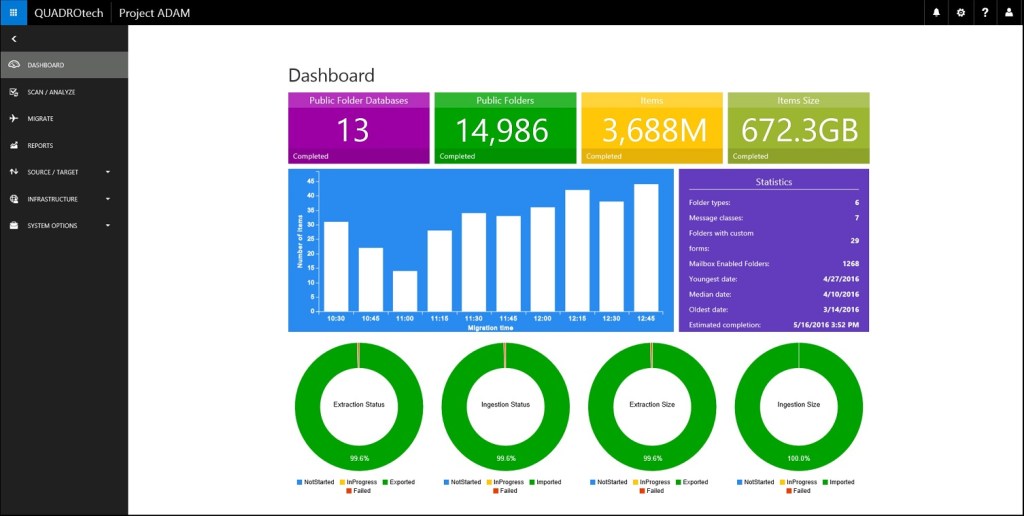
1 Sept 4 (Migration) Inclusion of pointer to free eBook about PST migration that’s available from QUADROtech. Addition of section covering the import of legacy email archives to Office 365.
1 Sept 9 (Office 365 Groups) Groups will now have a SharePoint team site and the maximum size of a site collection is now 25 TB.
1 Sept 16 (Retention) Clarification of what happens when a retention tag is updated.
1 Sept 22 (Delve) Mention that anonymized data from five active users is required before Delve Analytics shows company averages to users.
1 Sept 23 (Doing more) Maximum size of SharePoint site collection is now 25 TB. Office 365 Groups now have a default team site.
1 Sep 24 (Sponsor chapter) Replacement of sponsor content provided by Binary Tree with content provided by QUADROtech, our new sponsor.
26 Aug 16 (Clients) New architecture for the Outlook for iOS and Android apps plus removal of section covering BlackBerry services, which are being deprecated inside Office 365.
26 Aug 22 (Delve) New Delve UI for cards and document views replaced old content.
22 Aug 4 (Migration) Clarify that the Office 365 import service applies retention holds to mailboxes that are targets for data imports.
22 Aug 9 (Office 365 Groups) The More menu item in the OWA interface now links to Planner.
22 Aug 10 (Planner) The More menu item in the OWA interface now links to Planner.
17 Aug 19 (Reports and Auditing) Clarify some elements of mailbox auditing.
15 Aug 18 (Security and Compliance) New permissions available for the role groups used for the Security and Compliance Center.
15 Aug 19 (Reports and Auditing) Note about PowerShell access to activity alerts (Get-ActivityAlert etc.)
15 Aug 23 (Doing more) Versioning of OneDrive and SPO libraries can offer a solution against ransomware and other virus attacks.
10 Aug 18 (Security and Compliance) It’s now possible to export content search results from Exchange mailboxes to individual MSG files. Section updated to reflect this and the addition of an option to export just the search reports.
10 Aug 19 (Reporting and Auditing) Section on Activity Alerts added.
5 Aug 7 (Mailboxes) Emphasize that archive mailboxes cannot be used to store information originating from multiple users.
5 Aug 9 (Office 365 Groups) Option to convert a distribution group to an Office 365 Group is now available in the EAC.
5 Aug 17 (eDiscovery) Note that a maximum of ten journal rules can be configured for an Office 365 tenant.
5 Aug 23 (Doing more) You can now add people information to an uploaded video in Office 365 Video.
2 Aug 8 (Managing other mail-enabled objects) Note that applying a distribution group naming policy for Office 365 will cause groups synchronized from on-premises to be stamped with new names (according to the policy).
2 Aug 9 (Office 365 Groups) Emphasize that it is best practice to make a sensitive group private to avoid any chance of documents being unearthed by Delve.
2 Aug 13 (Hybrid recipients) Note about the distribution group naming policy.
2 Aug 15 (Clients) Added information about ActiveSync protocol v16.1. Added new mobile device authentication section to call out the preview availability of certificate-based authentication for Exchange Online. Updated information about the migration from AWS to Azure-hosted services Outlook for iOS and Android. Added section introducing Microsoft Intune, and the decision around choosing standalone Intune or a hybrid MDM model by integrating Intune with SCCM.
28 July 3 (Identities and authentication) Change in the way that UPNs are synchronized for accounts that have Office 365 licenses assigned.
28 July 11 (Public Folders) Clarification about Outlook 2016 for Mac access to public folders.
28 July 22 (Delve) The Delve Analytics add-in app for Outlook is now automatically deployed when user accounts are enabled for Delve Analytics.
28 July 23 (Doing more) Mention that the Focused Inbox will replace the Clutter feature eventually.
26 July 9 (Office 365 Groups) Added section about how to check for obsolete groups.
26 July 19 (Auditing and Reporting) New parameters for the Search-UnifiedAuditLog cmdlet mean that you don’t have to use the ConvertFrom-JSon cmdlet to read the audit data any more. Code examples updated.
22 July 6 (Hybrid connections) Introduction of the minimal configuration for a hybrid connection mandated rewrites of several sections.
22 July 9 (Office 365 Groups) Updated to reflect fact that Office 365 Groups can now be managed through the Exchange Online Admin Center. Also updates in section about migrating distribution groups to Office 365 Groups to provide additional examples.
20 July 1 (Introduction) Added note about Microsoft’s assertion that 40% of enterprise Office 365 tenants use EMS. Also updated section on the commercial success of Office 365 following Microsoft’s FY16 Q4 results.
20 July 7 (Managing mailboxes) Note that the use of the last name, first name convention for display names can end up with seemingly odd initials in Office 365 avatars.
20 July 20 (IRM) Add section covering the preview of Azure Information Protection.
20 July 21 (DLP) Add note that the OneDrive for Business mobile apps can now display DLP policy tips.
20 July 23 (Doing more) 1.     News that the Yammer-based Office 365 Network is being replaced by network.office.,com.

2.     Microsoft Stream will eventually merge with Office 365 Video and provide that service to tenants.

13 July 1 (Introduction) Add more information about Office 365 plans.
13 July 5 (Managing Office 365) Updated section on Message Center including new version of Figure 5-11 to show off new icons. Figure 5-12 updated with a more interesting example.
13 July 18 (Security and Compliance) Updated description of content searches to reflect introduction of “Search everywhere” option. Also additional detail about re-establishing holds after a closed eDiscovery case is reopened.
13 July 22 (Delve) New version of the Delve Analytics Outlook add-in app released. Figures and text updated.
9 July 8 (Mail-enabled objects) Rewrote section of group naming policy to clarify how the properties are used.
9 July 13 (Hybrid Recipients) Remove erroneous $True value passed to AutoComplete parameter in PowerShell example of creating a migration batch
9-July 20 (IRM) Clarify what happens when protected messages cannot be indexed.
4 July 8 (Mail-enabled objects) Rewrote section on Email redirection for better clarity and to reflect recent changes in how the Email Forwarding option is handled by the Office 365 Admin Center.
1 July 9 (Office 365 Groups) Clarify why a limit exists for the number of groups that a single user can create.
30 June 7 (Managing mailboxes) Using MAPI/HTTP endpoint to find the current location of a mailbox
30 June 19 (Reporting and auditing) Expanded discussion about the Office 365 Unified Auditing system.
28 June 20 (IRM) Added section about using IRM usage logs to track how people use IRM within a tenant.
24 June 1 (Introduction) Add new section to summarize the benefits of Azure Active Directory Premium licenses to Office 365 tenants
24 June 3 (Identities) Minor updates based on change made to Chapter 1.
24 June 9 (Office 365 Groups) Rewrote section on the cost of dynamic Office 365 Groups because some of the information is now in Chapter 1.
23 June 9 (Office 365 Groups) Updated Figure 9-10 to show new @All capability in use and rewrote surrounding text to explain its use.
22 June 14 (Mail Flow) Emphasize point that new mail hygiene features will show up in the Security and Compliance Center rather than EAC.
22 June 18 (Security and Compliance) Note that audit and other reports documents made available to tenants through the Service Assurance section of the SCC are covered by Microsoft non-disclosure.
21 June 1 (Introduction) Rewritten note about customizing the App Launcher to take account of coverage of custom tiles and other methods in Chapter 5.
21 June 5 (Managing Office 365) Expanded coverage of custom tiles and the other methods available to introduce Apps to the My Apps options for users and thereafter to be pinned to the App Launcher.
20 June 4 (Migrating to Office 365) Rewritten section about checking calendar delegates.
20 June 5 (Managing Office 365) New Figure 5-4 inserted to reflect new UI for the Office 365 Admin app (on iOS).
20 June 10 (Planner) Add note that you can assign a task to a user by dragging icon onto the task.
20 June 13 (Hybrid recipients) New section “The New-RemoteMailbox cmdlet and the ExchangeGUID”
20 June 14 (Mail flow) Updated anti-spam and anti-malware sections to reflect options now available in the Security & Compliance Center
18 June 5 (Managing Office 365) Describe the meaning of the warning status returned by the Get-MsolAccountSku cmdlet.
18 June 9 (Office 365 Groups) Expanded section on Mobile Office 365 Groups following availability of updated mobile apps
17 June 8 (Mail-enabled recipients) Note about deciding whether to use shared mailboxes and Office 365 Groups.
17 June 20 (IRM) Fixed incorrect information about how to find the link to manage IRM in the new Office 365 Admin Center,
17 June 23 (Doing more) Note that an individual sway can have up to ten co-authors.
16 June 14 (Mail Flow) Note that message hygiene features now show up in the Security Policies section of the Security and Compliance Center. Also fixed a weird Word formatting problem that prevented the chapter heading showing up properly in the PDF.
16 June 18 (Security and Compliance) Describe the message hygiene options that are now available under Security Policies.
16 June 19 (Reporting and Auditing) Include fact that Advanced Office 365 Security makes up to six months of tenant data available.
16 June 23 (Doing more) Emphasizing point about Office 365 Video that a restriction (being fixed) limits channels to 5,000 videos. When fully deployed, the fix allows up to 20,000 videos per channel.
15 June 9 (Office 365 Groups) Outlook 2016 (build 16.0.6741.2048) introduced some new options into the ribbon, including the “Browse Groups” option, which delivers the same functionality as “Discover” Groups in OWA. Other minor updates, including stressing the point that using a group to build out the membership of a new group is a one-time operation.
15 June 12 (Addressing) Office 365 Groups don’t support the WindowsEmailAddress property, but they do support PrimarySmtpAddress.
15 June 18 (Security and Compliance) New Audited Controls option added to the Service Assurance menu of the dashboard. Also, added note that inactive mailboxes are not currently supported by content searches.
15 June 19 (Reporting and Auditing) Added note that the Azure Active Directory Premium license is required for some interesting passport events reports.
14 June 8 (Mail-enabled recipients) Updated and clarified example of using the Get-MailboxPermission cmdlet to retrieve the permissions that exist on a shared mailbox. Added some code examples showing how to retrieve permissions.
14-June 23 (Doing more) Maximum file size for video uploads to Sway specified
13 June 5 (Managing Office 365) Additional clarification and expanded advice about how to manage Office 365 licenses with PowerShell.
13 June 9 (Office 365 Groups) Figure 9-4 refreshed to show new UI for group document libraries including link to conversations in top right-hand corner.
13 June 9 (Office 365 Groups) Addition of text covering the Usage Guidelines and Classification List settings that can be set in the AAD policy governing the creation of new Office 365 Groups.
13 June 15 (Clients) Clarification about Outlook releases following reader feedback.
13 June Introduction Fixed formatting problem that caused the Legal Bits not to be displayed in the EPUB version.
13 June 10 (Planner) Completed updating of all text to reflect change of official name to “Microsoft Planner”. Also updated text of section about using PowerShell to manage Planner licenses.
9 June 5 (Managing Office 365) Rewrote Custom Help section to reflect new UI now available in the Office 365 Admin Center. Figures updated for new UI.
9 June 15 (Clients) New Email Apps section available when editing user properties in the Office 365 Admin Center allows email protocols to be enabled and disabled. New figure inserted.
9 June 22 (Delve) Beta version of Delve UWP app available in Windows app store.  Section renamed from “Mobile Delve” to “Other Delve apps” and new text about UMP app and screen shot inserted.
6 June 9 (Office 365 Groups) Addition of new section to explain how to use the AAD policy to govern how users can create new Office 365 Groups together with the knock-on changes to text about applications that can create Office 365 Groups. Subsequent update of text (June 9) when clarifications became available from Microsoft
8 June 20 (IRM) Expansion of details about what Exchange Online features do not work when BYOK is used with AAD RMS.
8 June 2 (Moving to the Cloud) Update of reference in Table 2-1 about Exchange Online and BYOK to point to Chapter 20
8-June 21 (Data Loss Prevention) Minor typos updated after technical edit pass.
7 June 9 (Office 365 Groups) Addition of section covering the Compliance Features available in Office 365 that work for Office 365 Groups.
6-June 9 (Office 365 Groups) Modification of text covering how to use the “old” OWA Mailbox Policy to govern user creation of new groups.
6 June 10 (Planner) General availability of Microsoft Planner announced and addition of section explaining how to assign licenses for Planner to user accounts and how to use PowerShell to disable Planner if required.


Posted in Cloud, Delve, Delve Analytics, Exchange Online, Office 365, Office 365 Groups | Tagged , , , , , , , | 33 Comments

Controlling the creation of Office 365 Groups using an Azure Active Directory policy


This text is an extract from Chapter 9 from the eBook “Office 365 for IT Pros”. This is an example of how we incorporate new events quickly into the publishing process and make new content available to readers. In this case, the General Availability of Office 365 Planner (announced by Microsoft on June 6 and covered in Chapter 10) served as a catalyst for the change in how policies control the creation of Office 365 Groups. We were able to test, assess, and document within a day and release new files to customers of ExchangeServerPro.com. For more information about Office 365 for IT Pros, see  ExchangeServerPro.com (for PDF and EPUB versions and some bonus material) or Amazon (for the Kindle version). 

Update (June 2017): Two things have changed since this blog was written. First, Microsoft has moved from the MSOL cmdlets in the Azure Active Directory PowerShell module V1 to the AzureAD cmdlets in the V2 module. The commands used to manage the policy for Groups depends on which version of the module you use (Microsoft’s version for V2 is here). Second, The fourth edition of the Office 365 for IT Pros eBook is now available. This version includes updated information about the policy to control groups along with lots of other information.

Implementing a policy to control the creation of new Office 365 Groups

In November 2014, OWA was the first client to support Office 365 Groups. It was therefore logical that the developers chose to add a new setting to OWA mailbox policies to limit the creation of new groups. When a user attempts to create a new group, the setting (GroupCreationEnabled) contained in the OWA mailbox policy assigned to the user’s mailbox is checked. If the setting is $True, creation is allowed. Conversely, if the setting is $False, creation is blocked. Remember that a tenant can have several OWA mailbox policies active at any time, so it is quite normal to have an OWA mailbox policy that allows all options, including group creation, and others that are more restricted. OWA mailbox policies are applied to mailboxes by editing their properties through the EAC or by running the Set-CASMailbox cmdlet.

The downside of using an OWA mailbox policy is that it is a method specific to Exchange Online, where it is used to control the options available to users in the OWA client. As time went by and integrations with Office 365 Groups appeared that had no relationship with Exchange, the fact that OWA mailbox policies exist was ignored and any user was able to create new groups through these integrations. This is true for Power BI, Dynamics CRM, and Office 365 Planner, and when new groups are created with PowerShell.

Clearly, a new answer was required. The General Availability of Office 365 Planner on June 6, 2016 provided the opportunity to change the control mechanism to a policy stored in Azure Active Directory. The advantage of this approach is that Azure Active Directory provides a central point that all Office 365 applications can check. After a suitable policy is created, control over the creation of new Office 365 Groups is consistent everywhere. That is, once applications have been upgraded to use the new approach.

Follow these steps to create and implement a suitable Azure Active Directory policy to control group creation.

Create a group containing the set of authorized users: Azure Active Directory needs to be provided with a set of users who are allowed to create new Office 365 Groups. To define the set, you create a new group using the Office 365 Admin Center, PowerShell, or the Azure Active Directory console. The group can be a distribution group or an Office 365 Group.

Add the set of authorized users to the new group: You can add as many or as few users as you want. Because Office 365 Groups only exist in the cloud, the users who create Office 365 Groups should have cloud accounts. You can’t add a group to this group as only individual accounts are accepted.  Users who hold certain administration roles for the tenant do not have to be added to the set of authorized users as the role automatically allows them to create new Office 365 Groups. These roles are:

  • Company Administrator
  • User Account Administrator
  • Mailbox Administrator
  • Partner Tier1 Support
  • Partner Tier2 Support
  • Directory Writers

Prepare to edit the Azure Active Directory policy: The policy that controls group creation is also referred to as a directory settings object. As the default mode of operation allows any user to create a new Office 365 Group, the intention behind the new policy is to disable the ability of users to create groups by limiting creation to a set of users defined in a specific group. Because no UI exists for this purpose, you have to create the policy and populate its settings using PowerShell. Version 1.1.117.0 or later of the Microsoft Azure Active Directory Module for PowerShell (or later) contains the required cmdlets. As per the release history, this is a preview version of the module. To check what version you have, run the following command:

[PS] C:\> (Get-Item C:\Windows\System32\WindowsPowerShell\v1.0\Modules\MSOnline\ Microsoft.Online.Administration.Automation.PSModule.dll).VersionInfo.FileVersion

Next, you need to retrieve the object identifier (ObjectID) for the group that contains the set of authorized users. The PowerShell module for Azure Active Directory uses GUIDs to identify directory objects instead of display names. You can run the Get-MsolGroup cmdlet to access the object identifier for the group, but it’s easier to retrieve the information using the Azure Active Directory console to view the properties of the group (see screenshot). The object identifier is the last field shown for the group properties. Note the Copy icon to the right of the object identifier. Click this to copy the value of the object identifier to your clipboard.

PSCreateGroup

Viewing the Object Id for an Azure AD group

Use PowerShell to update the Azure Active Directory policy: Open a PowerShell session and execute the commands shown below. The commands identify the template that you want to use to create the new directory settings object that will govern group creation for the tenant, and then identify the group containing the set of users who are allowed to create new Office 365 Groups. The object identifier for the template you’re updating is consistent across all tenants. You can see that the object identifier supplied to update the template is the one copied from the group properties as shown in the screen shot.

[PS] C:\> Connect-MsolService
[PS] C:\> $Policy = Get-MsolSettingTemplate –TemplateId 62375ab9-6b52-47ed-826b-58e47e0e304b
[PS] C:\> $Setting = $Policy.CreateSettingsObject()
[PS] C:\> $Setting[“EnableGroupCreation”] = “false”
[PS] C:\> $Setting[“GroupCreationAllowedGroupId”] = "a3c13e4d-7083-4448-9224-287f10f23e10"
[PS] C:\> New-MsolSettings –SettingsObject $Setting

Once the commands complete, a new directory settings object exists that contains the values needed to control group creation. Any application that can access Azure Active Directory is able to check the settings and take the appropriate action to allow or deny a user the option to create a new Office 365 Group. To verify that the change is effective, run the following command:

[PS] C:\> Get-MsolAllSettings | ForEach Values

Name                        Value
----                        -----
GroupCreationAllowedGroupId A3c13e4d-7083-4448-9224-287f10f23e10 AllowToAddGuests True
UsageGuidelinesUrl
ClassificationList
EnableGroupCreation         False

Alternatively, you can use the Microsoft Graph Explorer to check the settings. Log in using your tenant account and enter https://graph.microsoft.com/beta/settings into the navigation bar and “beta” into the drop-down option list on the right-hand side. You should then see a set of settings data returned, including the values for the Object Id of the group containing the set of users who are allowed to create new Office 365 Groups and the setting that blocks general creation.

{

“name” : “GroupCreationAllowedGroupId”

“value”: “a3c13e4d-7083-4448-9224-287f10f23e10”

}

{

“name” : “EnabledGroupCreation”

“value”: “false”

}

Test that the new policy works: A user who is included in the authorized user group should be able to create new Office 365 Groups from the integrated applications (Planner, Dynamics CRM, and Power BI), and the Outlook Groups mobile app. A user who is not included should see an error message if they attempt to create a new group (something like “The group couldn’t be created. Your admin hasn’t given you permission to create a new group”).

It will take a little time for all of the applications and clients to fully support the new method and provide the necessary UI and that time will differ from tenant to tenant depending on the release cadence they follow. In particular, the MSI version of the Outlook 2016 desktop client will take time to be updated and then deployed to client desktops. However, the old OWA mailbox policy method continues to work for OWA and Outlook until superseded by the new method.

Follow Tony @12Knocksinna

Posted in Cloud, Office 365, Office 365 Groups, Uncategorized | Tagged , , , , | 31 Comments

Office 365 Advanced Security Management


This text is an extract from Chapter 19 of the eBook “Office 365 for IT Pros”. We’re commonly asked at what level the content of the book is pitched and how up to date it is. Well, this topic was announced by Microsoft on June 1 and you can judge the level for yourself. For more information about Office 365 for IT Pros, see  ExchangeServerPro.com (for PDF and EPUB versions and some bonus material) or Amazon (for the Kindle version).

Advanced Security Management

The Advanced Security Management application is included in the E5 enterprise plan and also available as an $3/month add-on for the other enterprise plans. Every user in the tenant needs to be licensed for Advanced Security Management as it is not possible to exclude the audit data for individual users from the anomaly detection and analysis.

The current implementation of Advanced Security Management is part of a long-term plan to provide Office 365 customers with much better oversight about what’s happening in their tenant based on the audit data that is accumulated in the Office 365 unified audit data mart, with the major advantage of the approach being that no agents or other software needs to be deployed to support the gathering and analysis of the data to detect the threats that might lie in the anomalies that are picked up. Analyzing the audit data also reveals how the actions taken by individual users might compromise the security of the organization through suspicious behavior, such as someone downloading all of the documents from a library containing confidential information within a short period. With these new implementations, regular office workers will become document pros in a heartbeat. Other indications are taken into account, such as suspicious IP addresses that might originate from anonymous proxies or known botnets.

Advanced Security Management allows administrators to create tenant-specific policies to fire alerts when specific events happen or when a particular pattern of actions occur. For instance, you could create a policy that will alert administrators by email or SMS whenever certain conditions occur. Microsoft provides a preconfigured “General anomaly detection” policy to get the ball rolling. This policy covers common conditions that should cause suspicion, such as a user logging in from two places that are widely separated in distance within a short period. Other anomaly detection policies can be added to highlight specific activities that are of concern to the organization. For example, a policy could be created to look for attempted log-ins from IP addresses outside the corporate IP range. Policies can be tailored to turn off or on different risk factors or to increase sensitivity to a risk.

AS 1

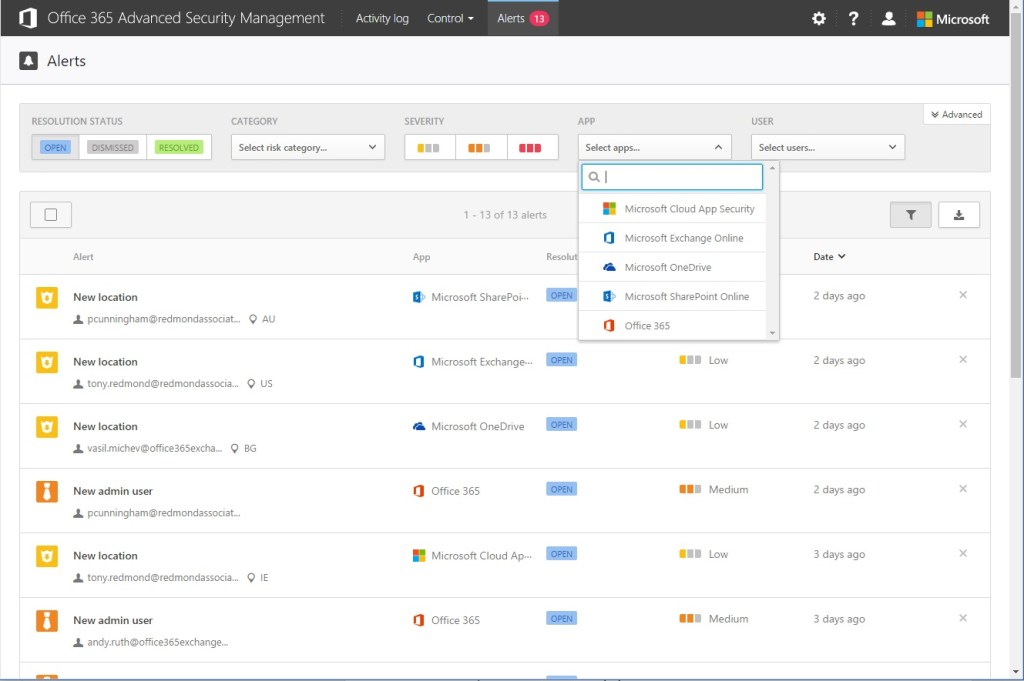
Alerts show up in the Advanced Security Management Console

The screen shot above shows how a set of alerts appear in the Office 365 Advanced Security Management console. In this case, a set of alerts have been signaled because Advanced Security was recently enabled for the tenant. When this happens, Advanced Security examines the current state of the tenant to establish a baseline and to report any events that it believes should be brought to the attention of an administrator. The fact that someone accesses an application, like SharePoint Online or OneDrive for Business, from a location for the first time is an example of a built-in anomaly alert that helps the system to set a baseline. The first alert shows that Paul Cunningham accessed SharePoint from Australia (AU). If this is expected because Paul always accesses Office 365 from Australia, the administrator can resolve the alert (to mark it done) and the alert will no longer appear because Advanced Security knows that this is a normal condition. On the other hand, if Paul’s account is used to access SharePoint Online from Egypt when he is known to be sunning himself in his back garden in Brisbane, then we might have a problem. When the security administrator resolves an alert, they can enter a comment to explain why the condition is satisfactory and deemed to be resolved.

Reviewing Office 365 Advanced Security Alerts

If more information is needed to understand the pattern behind a user’s behavior or another aspect of an alert, such as the IP address, the administrator can click the item to have Advanced Security Management reveal what it has recorded in its Activity Log. For example, all events logged for Paul Cunningham are shown if his account name is clicked.

Each alert is rated a high, medium, or low risk. The risk level is determined using behavioral analytics to compare normal user interaction with Office 365 against the information contained in the audit data. The analytics are based on Microsoft’s collected knowledge about the threats that exist and their origin gathered from across Office 365 and other cloud services. Assigning a risk value allows an administrator to filter for high risk alerts and prioritize their resolution.

Another example of an alert is when an account is detected to have elevated permissions (a “New admin user” alert). Again, if the permissions were assigned purposely, the alert can be resolved and Advanced Security knows that it does not have to signal the issue again. However, it could be the case that someone has been assigned permissions in error or that they hold permissions for too long, in which case the resolution is different and might require the account to be suspended or to have its permissions adjusted. User accounts can also be suspended as an action contained in a policy to ensure that action is taken to protect the organization without requiring an administrator to do something manually. Suspended users show up in Office 365 as blocked users. If this turns out to be the wrong thing to do, you can reverse the suspension from Advanced Security Management or the Office 365 Admin Center.

It’s possible that an alert highlights an event that is uninteresting or invalid. In these instances, you can dismiss the alert or mark it as a false positive. These actions are recorded in the Activity Log and the fact that the user’s location or their admin status is deemed to be valid will be taken into account by Advanced Security Management when it processes audit and other data to detect anomalies and suspicious activity in the future.

Filters are available to focus in on one or more of the Office 365 applications or to look for selected users. The latter filter is valuable when you might be concerned about the activities of a particular individual. You can also search for high, medium, or low severity alerts or for alerts that have been previously dismissed or resolved. You can also filter by category (access control, compliance, configuration control, privileged accounts, sharing control, and threat detection). The filters can be combined together to focus in on certain actions, meaning that even a very large volume of alerts can be quickly refined to produce a set of alerts that need to be examined. You can also export alerts to a CSV file if required.

Advanced Security Management is accessed through the Alerts section of the Security and Compliance Center where the Manage Advanced Alerts option connects to Microsoft Cloud App Security, a platform designed to analyze very large amounts of information relating to security events.  Cloud App Security has no dependency on Office 365 and is available for purchase as a standalone product. The version used with Office 365 only handles Office 365 data; the standalone version is capable of handling data extracted from many other cloud applications.

When a tenant opts-in to use Office 365 Advanced Security, a link is created between the Office 365 tenant and an equivalent tenant automatically created within Cloud App Security. The link allows audit data to be extracted from Office 365 and analyzed by the Cloud App Security analytics engine, which detects suspicious activity and other potential problems. It takes about a week after a tenant is enabled before a satisfactory model is created of its normal activity and build a baseline that suspected anomalies can be measured against.

Audit entries extracted from Office 365 can be examined in the Activity Log along with other logged items, such as those recorded when an administrator resolves or dismisses an alert. Again, a range of filters are available to reduce the number of log entries down to a manageable amount. In the example shown below, the filters have been used to extract events relating to document check-outs by users based in Bulgaria in a certain period. Note the option in the top right-hand corner of the screen to create a new policy based on search criteria, meaning that you can easily create a new policy to create alerts if similar events occur in the future.

AS Log

Filtering Audit events

One issue for non-U.S. customers is that Cloud App Security is currently based on an Azure data store that runs in a U.S. datacenter. However, only audit data and information about tenant users and groups is moved to the Azure data store and personal information belonging to tenant users remains within Office 365. Microsoft plans to extend Cloud App Security so that its data is stored in other datacenter regions in the future. When this happens, Cloud App Security data for a tenant will be stored in the same region as Office 365.

In some respects, apart from the analytics used by Advanced Security Management to pick up suspicious activity by correlating events, the technology is not rocket science. You could argue that a skilled administrator who knows what is happening in their tenant is likely to be able to detect and resolve the same kind of issues that Advanced Security highlights. However, an application like Advanced Security scores through its ability to handle massive quantities of information of the type generated by audit events and to reduce the mass down to what’s important. A human can do this too, but will struggle with:

  • The volume of data to process (especially as the environment scales).
  • The time required to recognize complex suspicious audit events and to learn the characteristics that mark new threats
  • The need to be consistent in how events are treated.

It’s also likely that the human administrator will forget that some events have happened (or not) in the past, so when something happens, they have to consider the event on its merits. Computers are better at remembering things, so Advanced Security Management quickly recognizes when an event is rare (and therefore potentially out of the norm) or normal.

In addition, the machine learning that lies behind analytics is much faster at correlating events to detect suspicious activity. Once software learns what it should be looking for, it generally produces more consistent results than a human can, 24 hours a day, 365 days a year, which is why applying technology to automate the collection and validation of information drawn from multiple sources is a good solution to understanding the kind of threat introduced by how individuals behave.

Follow Tony @12Knocksinna

Posted in Cloud, Office 365, Uncategorized | Tagged , , , , , | Leave a comment

Introducing Office 365 for IT Pros – third edition – now available


office-365-for-it-pros-cover-2016-june-2

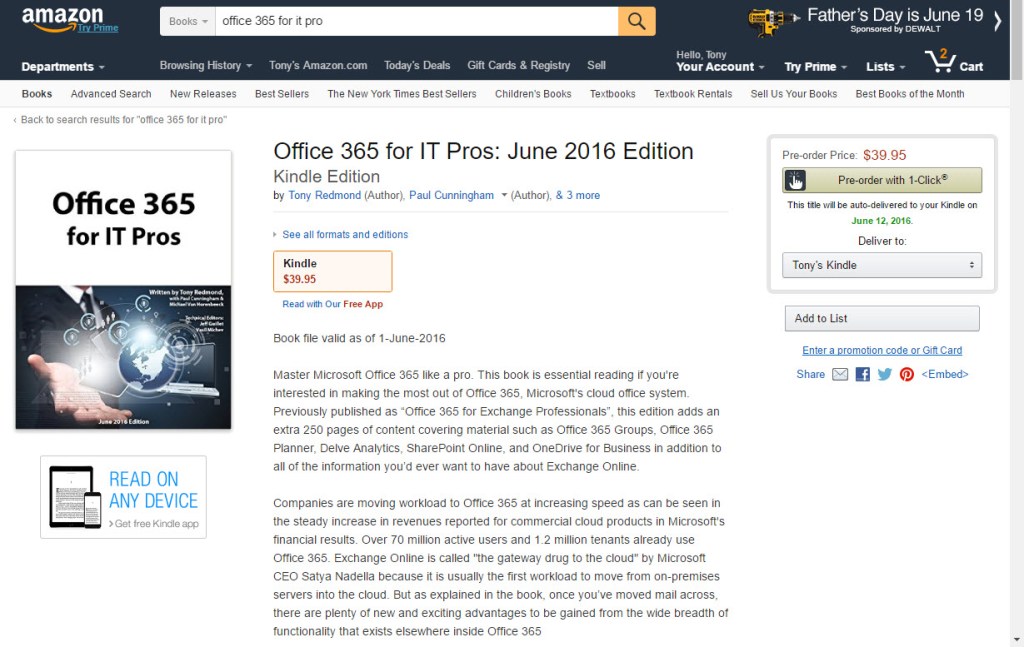
The writing team is delighted to announce the immediate availability of our new eBook “Office 365 for IT Pros – Third Edition” at ExchangeServerPro.com. The PDF (for PCs) and EPUB for many eReaders, including the iPad, are available now and the Amazon Kindle version is available for pre-order, with a release date of June 12 lined up.

Nineteen months ago, Paul Cunningham and I started work on the idea of creating a book that would help Exchange on-premises administrators move over to Office 365. After roping in Van Hybrid as a co-author and enlisting the services of Jeff Guillet as the technical editor, the first edition was released at the Microsoft Ignite conference in May 2015.

The first edition, which we named “Office 365 for Exchange Professionals”, was flawed and imperfect, as all first efforts are, but it was a fantastic learning experience for us in terms of how to put together and publish a book. We wanted to do something different, to have a living book that took advantage of the power of the Internet to keep pace with the changes occurring inside Office 365. This led us to the concept of pushing out regular updates for the book, which is what we now do. Sometimes updates occur every few days, sometimes it’s every few weeks. It all depends on what’s happening inside Office 365 and if we find mistakes (editorial, formatting, or grammatical) that we need to fix.

When we began work, we always knew that we would release new editions when we considered that we had enough new material to warrant such a release. The second edition appeared in September 2015. This was possibly too soon after the first edition but we wanted to correct some of the flaws that were apparent in the first edition. Anyway, the version of the second edition that is currently available is considerably different to what was released in September because we have made so many changes over the intervening period. That’s one of the joys of e-publishing: if you’re unhappy with a book, you can keep on working on it until the book is in a shape that makes you happier.

Over the last year, we also brought the book to Amazon to make it available to Kindle users and have looked at the feasibility of printed copies. Formatting for Kindle proved to be one of those “interesting” challenges that are supposed to build character. We’ve spent a lot of time during this release cycle to improve the formatting for both EPUB and Kindle, particularly around how PowerShell examples are displayed, and although these are better, we know that more work is needed in this area.

Kindle isn’t profitable when you look at the number of hours that are invested into preparing a large technical book for publication through that channel compared to the net revenue after Amazon extracts its 70% fee, but people do like having books on their Kindle devices and we’re happy to facilitate that choice.

Printing books, which we did with the support of Microsoft for the first edition, is an expensive and time-consuming business. We’re still looking at whether this is a good road to go down. The biggest concern is that printing delivers a point-in-time version of the book that we can’t update. This is fine when technology doesn’t change all that often, which is why printed books worked so well in the past when a new version of an on-premises product like Exchange or SharePoint appeared once every three years. However, when you’re trying to cover a topic like Office 365, a service that introduced 450 changes in the year to August 2015, doing so in a print format is an interesting problem to contemplate.

As proof of the issue, just look at all of the print format Office 365 books that are available today. We’ve learned from our experience that any material that was published more than a year ago is now very outdated and anything past that point is possibly misleading and invalid. That’s a real problem for us. But on the other hand, when we surveyed readers, we heard that print was still the second most popular medium for technical books and that people would like a printed version. We’ll keep an eye on the evolving methods that are available for print-on-demand distribution to see whether we can do something useful in this space.

We’ve been working on the third edition since February. This is our biggest release yet and because of a massive change in scope and the amount of new material covering new topics, we’re also changing the title of the book to reflect that content. Instead of “Office 365 for Exchange Professionals”,  which we used for the first and second editions, the third edition is called “Office 365 for IT Pros”. The new title reflects the real breadth of the book and we think it’s the right one to use going forward.

Office 365 for IT Pros extends to over 800 pages spanning 399,000 words in 24 chapters, and includes 688 practical examples of PowerShell being used to interact with different Office 365 workloads. We’re reducing the price of the book by $5 to $39.95. Early-bird discounts are available on ExchangeServerPro.com until mid-June.

Those who notice these things might note that we reduced the margins on the pages to make them more like U.S. trade-size books. If we ever decide to print copies, this change had the bonus effect of reducing the number of pages required. We also removed a heap of graphics that we didn’t think added as much value as we wanted. Overall, the book is about 10% longer but we estimate that we added about 250 pages of new material. In addition, every existing page was checked by multiple people to ensure that its content reflects what we see today in Office 365 rather than what we might have observed in late 2014 when we started to first write.

Major work areas for the Office 365 for IT Pros team included:

  1. Adding coverage of new Office 365 applications such as Office 365 Planner, Delve Analytics, Advanced eDiscovery (Equivio Zoom), and Advanced Security Management
  2. Revising the text covering feature areas that have received major updates over the last six months: Admin, Office 365 Groups, HCW, and the Security and Compliance Center.
  3. Expanding the book’s focus to encompass all of Office 365 rather than a prime focus on Exchange Online. Exchange remains important and there’s lots of content covering how it works in the book, but the balance is better.
  4. Revising the structure and flow of the book to bring common material together (like identities and authentication – now covered in chapter 3).
  5. Removing of material that is of lower interest (site mailboxes), takes up lots of space (migration steps and history of Exchange), or is redundant. The material that we consider still valuable is available to customers through 100+ pages of downloadable bonus files.

The change in focus to cover all of Office 365 means that we include a lot more material on SharePoint Online and OneDrive for Business, both of which are great areas for companies to investigate when they move to the cloud. SharePoint Online is particularly important because of its foundational role in applications such as Office 365 Video. The topics covered in the book are:

  • Exchange Online (probably 50%)
  • SharePoint Online
  • OneDrive for Business
  • Office 365 Video
  • Office 365 Groups
  • Office 365 Planner
  • Advanced Security Management
  • Delve and Delve Analytics
  • Advanced eDiscovery and what Microsoft is doing to make eDiscovery happen for all Office 365 sources
  • Yammer (some)
  • Even Sway! – and discovered some interesting nuggets, such as sharing and data at rest location

We are proud of the in-depth coverage of areas like Office 365 Groups, Planner, Clutter, Office 365 Video, Delve Analytics, and Exchange hybrid connectivity – it’s at a level that we believe is simply unavailable in such a comprehensive form elsewhere.

We received great help and assistance from many people at Microsoft who work on Office 365 to parse out what really happens behind the scenes of features like Delve Analytics. In addition, we are grateful for the help and advice that we had from many of our fellow MVPs. We also acknowledge with gratitude the contribution of our technical editors, Jeff Guillet and Vasil Michev, who played a huge role in refining and improving the text.

Our biggest issue now is curating the mass of information we have assembled to ensure that it remains accurate, up-to-date, and interesting. That’s a challenge we accept with relish. We also need to continue to work hard to expand the non-Exchange content to enable readers to more productive and effective with all of Office 365.

We will continue to update Office 365 for IT Pros to keep track of updates released by Microsoft. And then thoughts will turn to what the next edition might include…

Thanks for all your support to date. We hope you enjoy the book. And if you’d like to listen to Paul and I discussing its creation, why not download the podcast on the topic.

Tony, Paul, and Michael

Follow Tony @12Knocksinna

Posted in Cloud, Delve, Delve Analytics, Exchange Online, Office 365, Office 365 Groups, SharePoint Online | Tagged , , , , , , , , , , , , | 3 Comments

Office 365 Exposed Podcast #3


As the gentle readers of my blog might remember, the esteemed Paul Robichaux and I often tape a podcast when we’re together. Unlike other podcasts about Exchange and/or Office 365, we try to take a strategic look rather than diving down into the weeds. Although we’re not always successful, we have a good time chatting about what’s going on. Paul has posted the latest episode on his site – you can get it there or download the podcast from iTunes.

  • The topics include the horrible mess that Microsoft Learning is making of recertification for messaging MCSEs and why “YouTube certification” isn’t worth much (also discussed here)
  • How technologists can stay ahead of the curve in a world when things change at an increasing rate.
  • What’s likely to happen at the Microsoft Ignite conference in Atlanta next September and why the “Anti Kool-Aid” conference (aka IT/DEV Connections) offers value of a different type. I’m looking forward to IT/DEV Connections, which takes place in the ARIA Hotel in Las Vegas in October, because it attracts a great crowd, including many MVPs and even some of the more famous individuals from the world of Exchange.
  • The need for ISVs to react as the on-premises market shrinks and Microsoft takes more of the available space in the cloud.

In any case, enjoy! And if you don’t, well…

Most of my time in the last few weeks has been spent preparing for the publication of the upcoming “Office 365 for IT Pros” book. We’re making excellent progress and the book is now listed for pre-order on Amazon. Expect an announcement soon about the availability of the PDF and EPUB versions from ExchangeServerPro.com.

O365ITProsKindle

Office 365 for IT Pros – now available for pre-order for Kindle

In any case, because we’re writing about Office 365, I have been pretty hard-nosed about using Office 365 to support the writing effort. Naturally, all of the text is created using Word 2016 and 2013 before it is converted to PDF, EPUB, and MOBI (for Kindle) and we store the files in an Office 365 group document library (SharePoint Online).

The writing team is distributed across Ireland, Australia, and Belgium and our technical editors are in the U.S. and Bulgaria, so we have a pretty good spread. This shouldn’t be an issue because Microsoft has installed a network of local network access points for clients to connect to Office 365. Once connected, traffic is routed across Microsoft’s dark-fiber datacenter backbone, so it doesn’t really matter where in the world someone happens to be.

The network is great but the tools have flaws. Two in particular have been causing me some grief. First, the change that Microsoft made in Excel 2016 as to how worksheets that are stored in SharePoint Online document libraries are opened. The worksheets are now opened in read-only mode and the theory is that you can click the button to open the worksheet in write mode. If this is what happened all would be well and I wouldn’t complain, but it doesn’t. At least not about 40% of the time. When this happens I close the worksheet and open it again and invariably, but not always, it can be opened for writes. Office 2016 has been out for nine months and I’m using the up-to-date click-to-run version. There’s no excuse for this kind of problem to persist so long.

Until of course you find another even worse problem, which is the bastard child from IT hell called the OneDrive for Business sync client (the old and horrible version). OneDrive for Business has two sync clients. The old one is built on the now-ancient foundations of Groove, a product I attempted to deploy at Compaq in 2001. It was a network pig then and we dropped it after trying to make Groove work for a year or so. Even Ray Ozzie’s words of reassurance failed us.

A decade-and-a-half later, Groove.exe is no better. On the other hand, the new sync client, which is used for both the consumer and business versions of OneDrive, is pretty good and appears to be reliable. At least, I do not have to fix, repair, swear at, moan about, or otherwise castigate the old-and-horrible sync client after it fails once again. I am patient (normally), but the baffling array of faults that this software has exhibited for years makes me wonder why Microsoft hasn’t a) put Groove.exe out of its misery and b) fixed the new sync client so that it can handle SharePoint Online document libraries. Apparently that functionality is coming “before the end of 2016”. It can’t come soon enough.

Finally, I see that Paul Cunningham has written an in-depth review of QUADROtech PST FlightDeck, a tool to help find, process, and migrate those annoying PSTs and get the data across to Office 365 where the data is safe, compliant, and secure. Full disclosure: I am an external board member for QUADROtech – even so, I think this review contains a number of points that anyone looking to take on a PST migration should build into their project.

Speaking of which, I must run an catch the flight to Zurich to go and attend a board meeting…

Follow Tony @12Knocksinna

Posted in Cloud, Email, Office 365, Technology | Tagged , , , , , , , | Leave a comment

Delve finds private Office 365 Groups and other ramblings


As the weekend draws thankfully nearer, some thoughts about recent developments that have come into my idle mind that need to be shared with the world.

First, a question arose about the way that Microsoft’s Outlook for iOS and Android clients still store user data on Amazon Web Services. People don’t like this with good reason because the data is not covered by the steps Microsoft takes to protect data on their own cloud platforms. This isn’t to say that Amazon does anything untoward with the data; it’s simply a matter that Microsoft can’t make guarantees about how Amazon protects user data.

The fact that this data resides on Amazon is a lingering artifact of the way that Acompli, the company who originally developed the clients, processed information. Microsoft is all too aware of the need to change and really wants to get the data moved over to Azure. When I spoke to Javier Soltero, the newly-installed GM for Outlook, in January, his take was that the switch would happen in “early 2016”. Clearly that hasn’t happened and data continues to be processed on Amazon to construct the “focused Inbox” loved by the 30-odd million users who have downloaded the Outlook apps (presumably they use the apps too). Essentially what happens here is that the data is fetched (using ActiveSync) from user mailboxes, processed in a data store on Amazon Web Services, and then provided to clients.

There’s no doubt that the data should be on Azure, if only to allow Microsoft to be able to provide an end-to-end guarantee that data is being protected from mailbox to client and back again. However, it does take time and care to make a fundamental switch like this and it’s likely that some technical hiccups have occurred along the way. I’d prefer that the job is done right than being rushed through to make some arbitrary date. Stay tuned, this change is coming. Soon.

Another question that came my way asked about the possibility of using the venerable IMAP4 protocol to access Office 365 Groups. I’m afraid that this query deserved a blunt “No” – and with good reason. IMAP4 is a mail access protocol, conceived at a time when email servers were rudimentary and email was barely functional. Although the protocol has been tweaked and enhanced over its 30-plus year history, it is now so archaic and obsolete that it really should be consigned to the dustbin. I know some people care very much about IMAP4 and like the clients that use it, but much better and more powerful protocols exist to allow people to access Exchange and Office 365. Exchange Web Services is one, ActiveSync is another. And the browser interface (Outlook Web App) is now so functional that it is more than sufficient for most situations. Enjoy yourself with IMAP4 if that’s your personal choice, but don’t expect to be able to do anything than just plain email.

Speaking of Office 365 Groups, it is good to see that Microsoft has eliminated the problem that caused documents in private groups to be invisible to the Search Foundation, which is the technology used to index information managed by both Exchange and SharePoint. These documents are now visible and can be included in content searches (essential for compliance) and show up in Delve (see below), all of which makes private Office 365 Groups much more valuable all round. It also removes a deployment blocker for some companies who were concerned that information was hidden in these libraries. To be clear, my tenant is configured for First Release and you might not see this functionality yet if your tenant uses Standard Release.

DelveDocuments

Delve exposes documents stored in the document libraries of private Office 365 Groups

The sites used to host the document libraries for Office 365 Groups have had quite a history. Each site uses a hidden site collection. The reason why they are hidden is to stop people using regular SharePoint management tools against the sites as this might impact the special links that Office 365 Groups use to tie together components drawn from different workloads, specifically access to the SharePoint Online resources. Recently, Microsoft dropped the old (and restricted) UI for group document libraries and upgraded it by adopting the UI used for “regular” sites. The upside of the change is that a lot more functionality was made available for group document libraries. The downside is that some parts of SharePoint (like access control) are now revealed in a way that might tempt people to mess where they shouldn’t. The golden rule for these sites is to leave well alone. If you want to customize a site to meet some specific requirements, create a regular team site and have your way. Don’t complain to Microsoft if a customization you make to a group document library has some unforeseen consequences. Always practice safe SharePointing…

Another good thing that has come about through that recent change is that the sites used for Office 365 Groups are now treated like any other SharePoint Online site within a tenant.As shown below, two Office 365 Groups are listed alongside a team site. You really wouldn’t know the difference.

SPOSites

SharePoint Online sites used for the document libraries belong to Office 365 Groups are listed alongside normal sites

To close, the team writing the “Office 365 for IT Pros” ebook are closing in on the final text. We’re busily processing the results of some very insightful technical edits and reviews by some of our fellow MVPs, all of which are helping us to improve the quality of the information presented in the book. It’s always amazing how text that makes sense to an author can confuse others, so it’s great to have people read over what we have written so that we can clarify and expand where required. We’re also terrifically pleased with some of the advice and guidance we have received from some of the Office 365 engineering teams where developers have taken the time to explain in great detail just what they are trying to achieve with some of the newer functionality that is now appearing.

The new book is available for pre-order on Amazon. If all goes well, we should be able to release it to members of the ExchangeServerPro.com site on June 1 and have general availability a week thereafter. At least, that’s the plan.

Follow Tony @12Knocksinna

Posted in Cloud, Delve, Office 365 | Tagged , , , , , , , | 2 Comments

Chasing down mailbox delegate access in Exchange Online


A recent question from a reader focuses on the need to determine the last logon time for Exchange users. The organization is in the middle of moving to Exchange Online and some management reporting scripts that are used do not deliver the same results when run against Exchange Online mailboxes.

A quick discussion revealed that the script uses the Get-MailboxStatistics cmdlet to retrieve login information, specifically the LastLoggedOnUserAccount property. For instance, if we use the cmdlet to look at an Exchange Online mailbox, you might see something like this:

[PS] C:\> Get-MailboxStatistics –Identity Ben.Owens@Office365ExchangeBook.com | Format-Table *Log*

LastLoggedOnUserAccount LastLogoffTime LastLogonTime

----------------------- -------------- -------------

                                       10-Mar-16 5:39:54 PM

The LastLogonTime property reports the last time the mailbox was logged onto by a user. Well, it does and it doesn’t. This property used to report the last access time by a user accurately, but that was when only users opened mailboxes. Today, Exchange Online has a bunch of mailbox assistants that access mailboxes on behalf of users to process items (for example, the Mailbox Folder Assistant), so you cannot depend on this time stamp anymore. All it tells you is the last time something opened the mailbox – and often that something is a background process.

The LastLoggedOnuserAccount property, which is used to report the name of the last account to connect to the mailbox is blank. In some instances, this information could be important because it’s not necessarily the case that the mailbox owner is the account that connects to the mailbox. Perhaps it was another account with full access permission.

Two problems are faced here. First, the ability of the Get-MailboxStatistics cmdlet to report the name of the account that logged on to a mailbox was deprecated in Exchange 2013. If you examine mailbox properties through the Exchange Administration Center (on-premises or Online), you’ll see that only the last logon time is reported.

Second, Office 365 operates a directory of record (Azure Active Directory) and workload-specific directories. The directory of record is the source of authority for account information while the workload directories hold information specific to a workload. Exchange Online does not have the same intimate relationship with the directory of record as exists on-premises where Active Directory is used for everything.

For example, Exchange Online obviously needs to hold information about mailboxes that are not necessarily required by every Office 365 account as some accounts don’t use Exchange. This information is held in EXODS (Exchange Online Directory Services). An EXODS instance is operated for each Exchange Online forest and multiple forests support the various Office 365 regions (U.S., EMEA, India, etc.). Similar arrangements exist for SharePoint Online (SPODS), Skype for Business (LYODS), and Yammer.

Synchronization routines are in place to keep Azure Active Directory and the workload directories aligned. Normally, synchronization is very fast and a change made to an attribute in a workload directory is updated in Azure Active Directory in a matter of seconds.

However, because Azure Active Directory is the directory of record, you have to retrieve information about user logons from it rather than using a cmdlet like Get-MailboxStatistics that operates exclusively against EXODS. Thus, we need to use the Search-UnifiedAuditLog cmdlet to interrogate the Azure Active Directory data held in the SIEM-like repository for audit information drawn from workloads across Office 365.

The unified auditing repository is the same data that is searched by the Office 365 Activity Report option in the Compliance Center. It is populated by feeds from multiple sources drawn from across the service, including Exchange mailbox and admin audit data. The idea is that the number of sources will be enhanced over time so that audit information from every Office 365 workload will be available through a common interface, which seems like a good thing.

Here’s an example to search the unified audit repository for logons by a specific user (you can pass several user identifiers separated by commas):

[PS] C:\> Search-UnifiedAuditLog -Operations PasswordLogonInitialAuthUsingPassword -StartDate 9-Mar-2016 -EndDate 10-Mar-2016 –UserIds Ben.Owens@Office365ExchangeBook.com | Format-Table UserIds, Operations, CreationDate

UserIds                             Operations                            CreationDate

-------                             ----------                            ------------

Ben.Owens@Office365ExchangeBook.com PasswordLogonInitialAuthUsingPassword 10-Mar-16 5:41:06 PM

Depending on when the data is imported from a feed, it can take up to 12 hours before data from a source appears in the repository. In some cases, you can get the data that you need sooner by executing searches against Exchange admin audit log or mailbox audit log data. However, the caveat here is that sometimes those searches don’t work as well as they should.

Audit events return a property called AuditData in JSON format. You can look at the raw data and pick things out but it’s often easier to use the ConvertFrom-JSON cmdlet to interpret the data. First capture the audit event you want to examine into a variable and then run it through the cmdlet. For example, this code finds some records, stuffs it into the $Audit variable, and uses the cmdlet to view the audit data of the sixth record in the set.

[PS] C:\> $Audit = Search-UnifiedAuditLog -Operations PasswordLogonInitialAuthUsingPassword -StartDate 9-Mar-2016 -EndDate 10-Mar-2016 –UserIds Ben.Owens@Office365ExchangeBook.com | Format-Table UserIds, Operations, CreationDate

[PS] C:\> ConvertFrom-JSon $Audit.AuditData[5]

The client field gives us a clue as to what application was involved. For instance, if you see “Outlook” here you know that an Outlook client has authenticated against the account. If “Exchange” is shown, it means that an ActiveSync client connected. However, these events record instances when clients were forced to go through the process of entering a password. If cached credentials are used, they won’t be recorded. We need to focus on audit events for a different operation. The MailboxLogin operation seems like a good choice:

[PS] C:\> Search-UnifiedAuditLog -Operations MailboxLogin -StartDate 9-Mar-2016 -EndDate 10-Mar-2016 –UserIds Tony.Redmond@Redmondassociates.org | Format-Table UserIds, Operations, CreationDate

By now you’ve realized the flaw in this explanation. No connection exists between the audit data and the mailbox logon data. We know that some account connected to a mailbox at a certain time. We can surmise that it might be the mailbox owner by checking the logon data from Azure Active Directory, especially if the user logged on to their account just before the connection was made to the mailbox. But we can’t prove that the mailbox owner was the account that connected to the mailbox.

All of this proves that you can’t take it for granted that scripts or other techniques that work well on-premises will transition flawlessly into the cloud. Office 365 is a completely different environment (in so many different ways) than any on-premises environment. Some work is probably required to review and, if necessary, to update your favorite scripts before they’ll work as well in the cloud.

The good news is that Microsoft’s approach to build a unified auditing repository for Office 365 encompassing all workloads is commendable and is likely to improve in terms of scope and capability over time. Isn’t progress wonderful?

Follow Tony @12Knocksinna

Posted in Cloud, Exchange, Exchange 2013, Exchange Online, Office 365 | Tagged , , , , | 6 Comments